Form Builder features
Explore all the features of Elfsight Form Builder and how they can help you create the most effective widget.
Build a form with AI
Describe the form you need, and the AI form generator puts it together for you. Then change anything you like in the editor.Drag-and-drop builder, no code
Pick from 24 elements for different tasks and arrange them by dragging. No coding: any form you need is put together right in the editor.Contact form
Design an inviting and simple contact form with Elfsight Form Builder to attract customer contacts. Our app has all the necessary elements: fields for name, phone, address, email, and more contact details, with labels, descriptions, and placeholders to hint how to fill them correctly.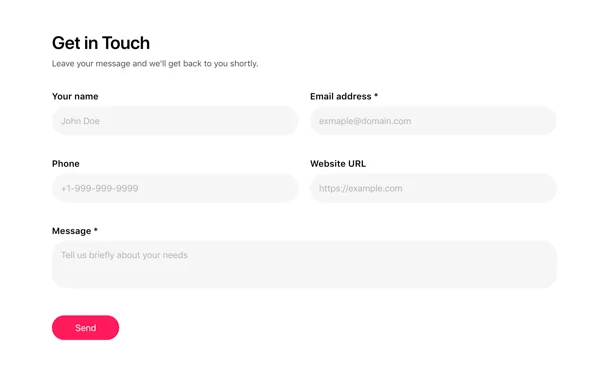
Survey
It’s very easy to arrange a survey with multiple choice questions for your clients or website users. Elfsight Form Creator includes three types of selects: checkbox, radio buttons and dropdown. The Label is here to write the question, and you can add unlimited number of answer options.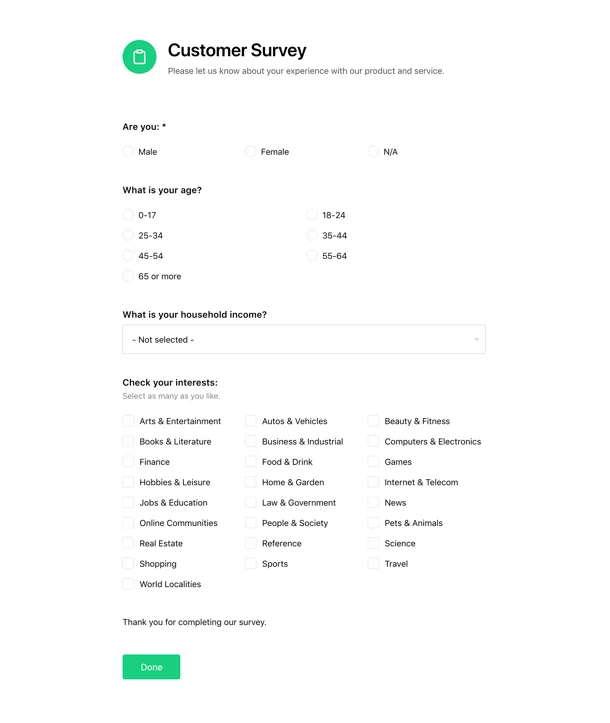
Feedback form
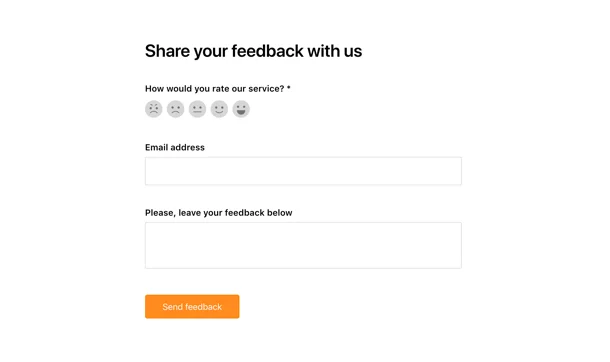
Collect customer insights about your business with a handy and friendly feedback form. You can offer users four types of ratings: Number scale, Star scale, Smileys and Thumbs. Add labels, descriptions, vary the range of the scale and set scale captions to give prompts.Tip: If you need to set a rating with numbers, think of the right scale length. Our plugin offers 1 to 10 scale – while it might be easier for clients to choose out of 5 points, 10-point scale will give you a more precise assessment.
Multi-step forms
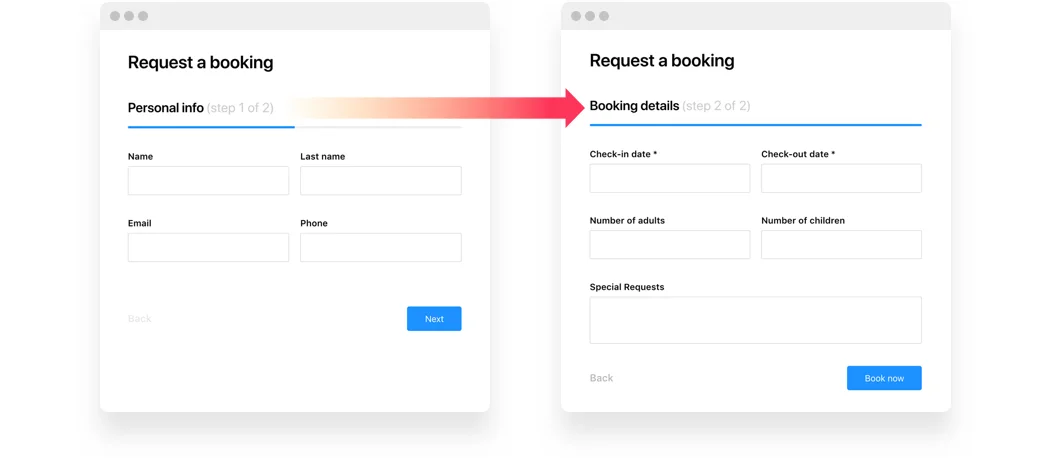
With Elfsight Form Builder, you can break the filling process into several steps with separate validation. It will be done automatically if you add two and more groups of elements. Create as many groups as you need and change their order. Users will navigate with Next and Back button. To visualize the progress, there’s a progress bar with steps count and description.Tip: If you use groups of elements don’t forget to create titles for them. They will be shown on the progress bar and make it easier for users to navigate between the steps.
Show and hide fields with conditional logic
Set rules, and the form changes as it is filled in: fields appear or hide depending on the answers.Usage examples
See a selection of real examples to explore the full potential of Form Builder for your website.
See in actionLive demo
Try all the features of Form Builder in live demo now. No fees. No registration. No coding.
Try nowDefault layout for content areas
A classical layout that will blend in and look balanced on any page of your site. It works well for placing your form into a content zone, for example a Contact us form on a contact page of your site. You can vary the width of your form to make it fit your space requirements.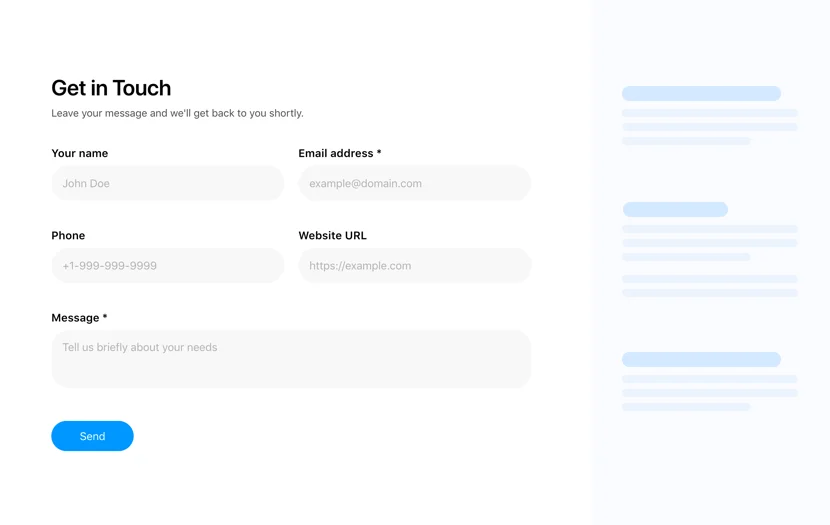
Boxed layout with minimalist look
Minimalist layout that makes the app look more defined due to showing outer and inner borders and coloring the header. It creates a contrast and highlights the header of the form. It is also a good variant for content areas and has flexible width.
Floating layout for adding to several pages
This layout is a great solution if you need a form placed on several pages of the site. It is shown as a small icon that goes up and down following the scroll and expands to full size on a click. For example, you can create a feedback request form and add it on each site page.
Breaking elements into columns
One more way to change the organization of elements is to change the number of columns. You can set your form elements into one, two or three columns, whatever layout you have chosen. This can be useful to save space and make the form more compact.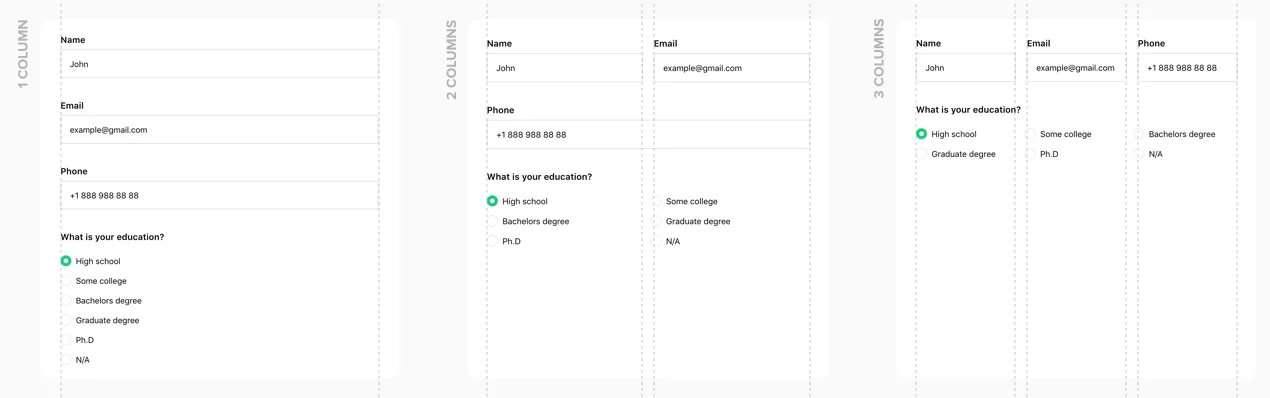
Inline or in a side panel
Embed the form right in the page, or let a button open it in a side panel. Lay it out vertically or horizontally, whichever suits the space.Usage examples
See a selection of real examples to explore the full potential of Form Builder for your website.
See in actionLive demo
Try all the features of Form Builder in live demo now. No fees. No registration. No coding.
Try now5 popular styles embedded
Let any piece of your website fit into the overall style and concept. It’s so easy to make your fill-in form do it as well. Try five embedded styles that are ready to use in one click and you will check how each one looks on your site. Classic, Flat, Material and more – you will surely find the one for you!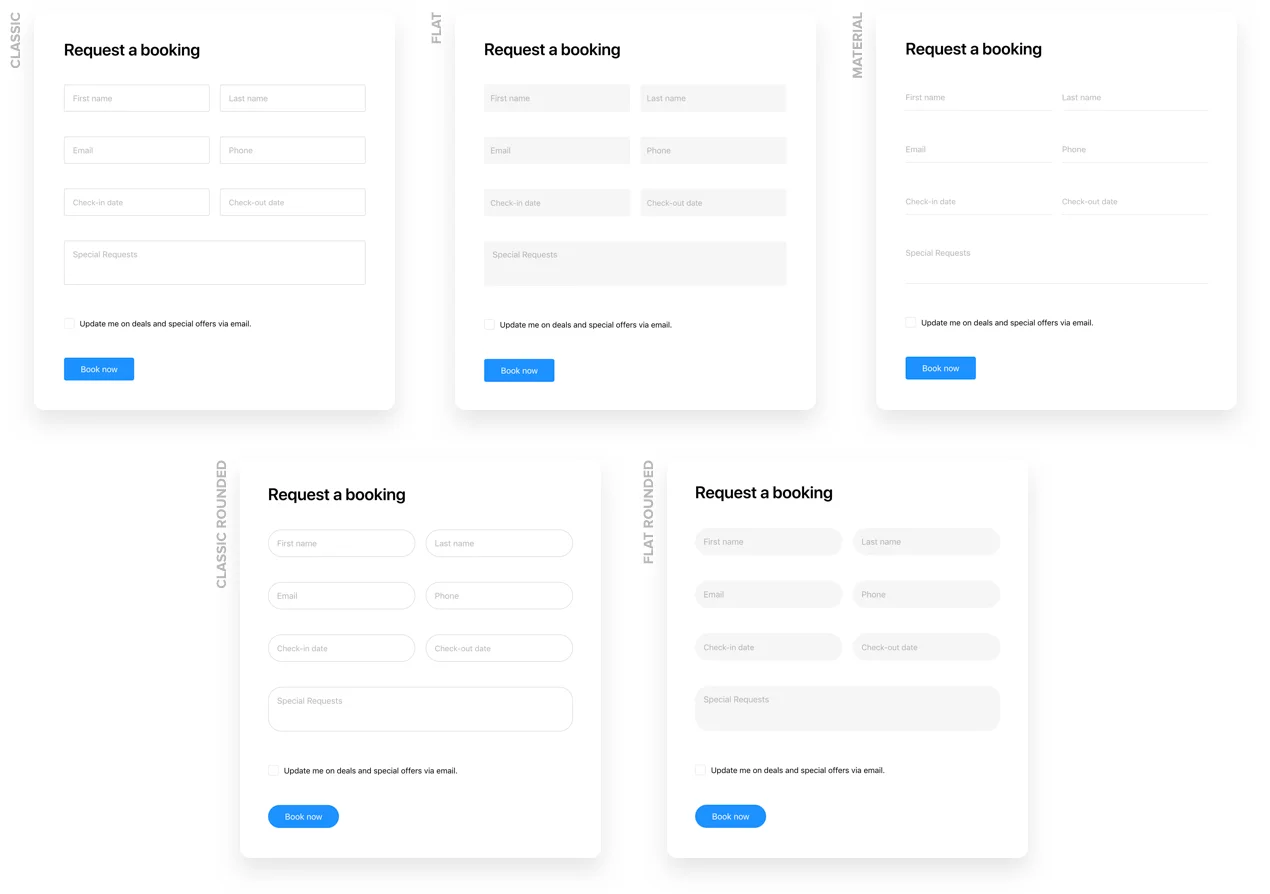
Painting it the perfect colors in no time
Would like your form to repeat the color solution of your site? Or do you want to make it a bright spot? It’s all available in a click or two – just choose the main color of the form and it will paint the icon, button, progress bar, and other active elements. Smart Elfsight One-Click Colorizer will choose the most contrasting color and apply it to the rest elements.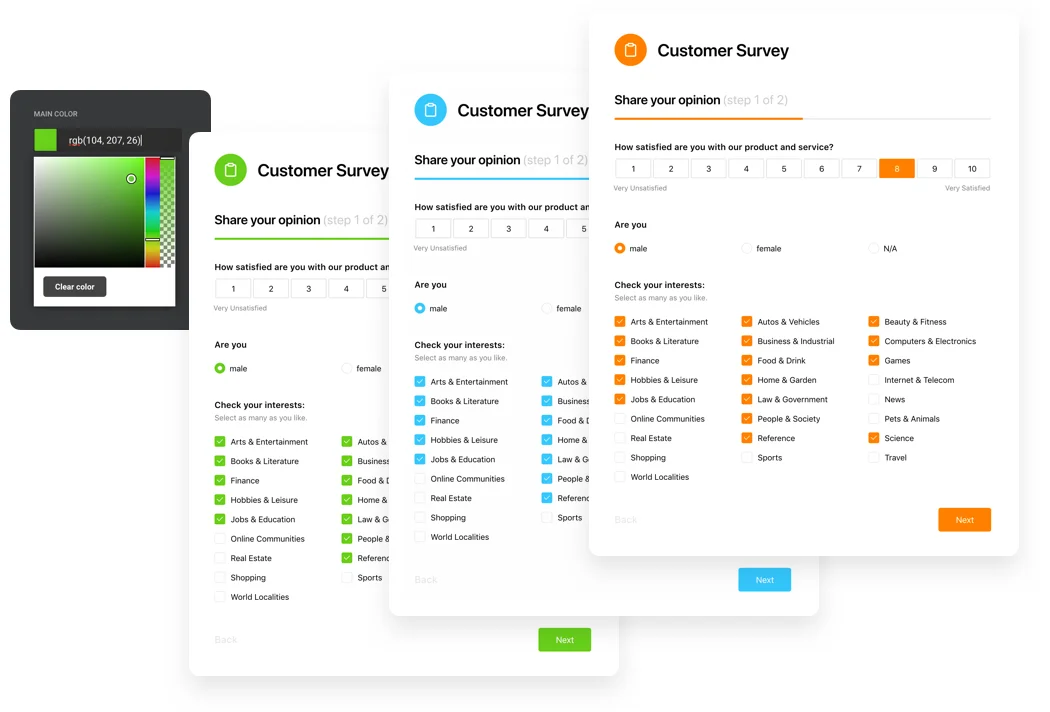
Flexible header with wide customization
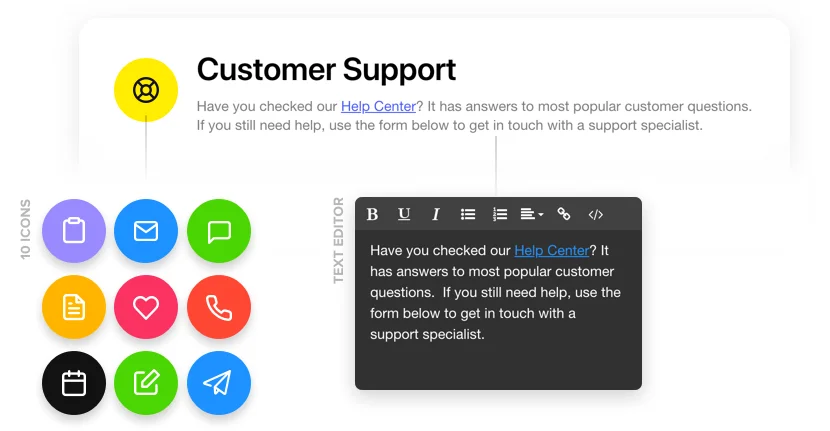
Elfsight Form Creator offers you a header with diverse customization settings. You can create a bright title and invite more users to fill in the form. Use header text to speak to your users or provide more details about the form, you can make text bold, italics or underlined, choose align variant and create a list. Our header also has a library of icons visualizing the most popular data collection types.Tip: If you use groups of elements don’t forget to create titles for them. They will be shown on the progress bar and make it easier for users to navigate between the steps.
Custom CSS and JS
Go beyond the editor’s settings: add your own CSS and JavaScript to fine-tune how the form looks and works.High safety with reCAPTCHA
We make the latest technologies a part of our Form Creator to give you seamless experience. Elfsight Form Builder is embedded with the most powerful reCAPTCHA safety tool. It is here to safeguard your form and mailbox against spam and bots and assure smooth work and only valuable data.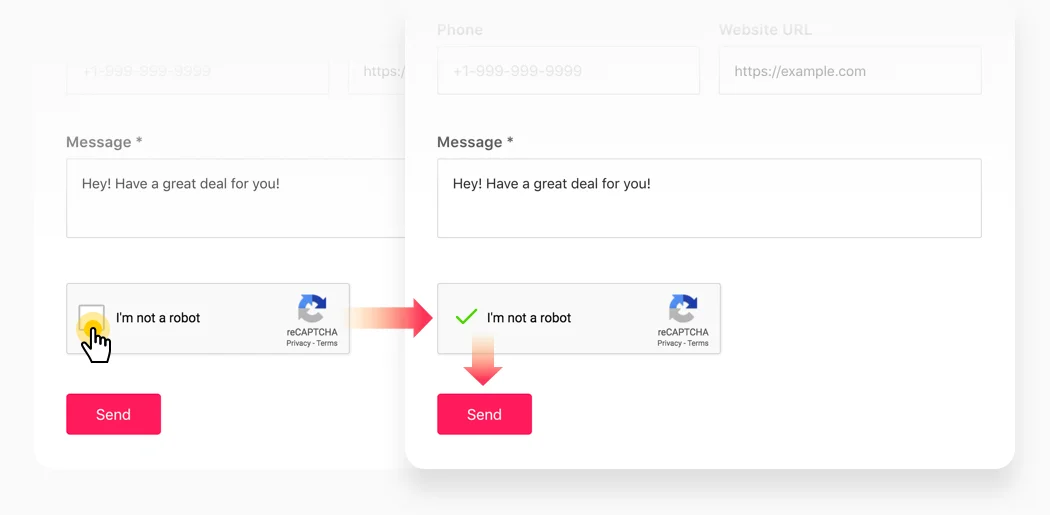
Choose the action on submission
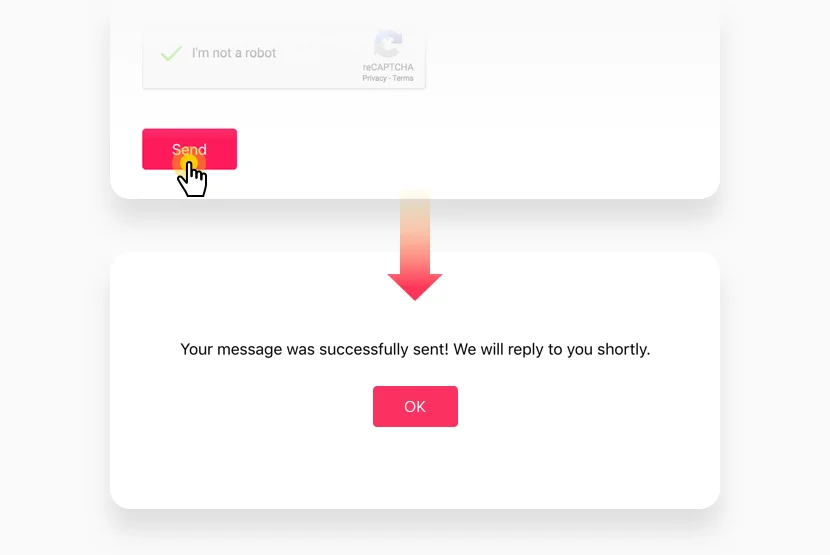
Keeping in mind that our Form Builder is a universal instrument supporting different form types, we have come up with three variants of action on submission to make it work perfectly for you. You can choose to show a Thank you message with editable text, to redirect a user to any other address or simply to hide the form.Tip: If you use Thank you message, think of a warm text which will show your gratitude for their time and effort. Also don’t forget to create your custom text for Thank you button.
Email notifications for you and the respondent
Get an email about every submission, and send the person who filled in the form an email of their own.Send from your own SMTP server
Connect your custom SMTP, and the form’s emails go out from your own mail server.Forms in 78 languages
Elfsight Form Builder is translated into 78 languages, so your form can speak your visitors’ language.Send submissions to Google Sheets
Connect a Google Sheets spreadsheet in the editor’s Integrations tab, and every submission is added to it as a new row right away, where your team already works.Use it to share leads with sales, keep a running list of orders or registrations, or sort and filter answers without exporting anything.
Connect thousands of apps with Zapier
Zapier passes each new submission on to the other apps you use — your CRM, help desk, mailing service or team chat — with no coding, just a connection.Connect Zapier in the editor’s Integrations tab, then choose in Zapier what should happen with every new submission: create a deal, open a ticket or post a message to your team.
Automate workflows with Make.com
Make.com sends your form’s submissions into automated scenarios: one submission can update several apps at once, step by step.Connect Make.com in the editor’s Integrations tab and build the scenario in Make — for example, add a lead to your CRM, notify your team and send a follow-up email.
Grow your mailing list with Mailchimp
Connect Mailchimp, and the people who fill in your form are added to your audience, ready for your next campaign.It works best for newsletter sign-ups, contests and event registrations: add an email field to the form, connect Mailchimp in the Integrations tab and pick the audience.
Take payments with Stripe
Connect Stripe to an order, booking or donation form: visitors complete the payment before the form is submitted.Use it to sell products or services, take payment for bookings or collect donations right on your website, without a separate checkout.
Send data anywhere with webhooks
A webhook sends each submission to the address you set — your own system or a service that has no ready connection.Developers use it to save submissions in their own database, start internal workflows or connect tools that Zapier and Make.com don’t cover.
Measure your form with Google Analytics
Connect Google Analytics in the editor to track how visitors interact with your form: when someone starts filling it out and when they submit it. A floating form also reports when it opens.Compare how many visitors start the form with how many submit it, find where they drop off and see which pages bring the most submissions.
Tip: Email notifications are always there: set them up in the editor’s Email tab to get every submission in your inbox, with or without an integration.
Join 3,000,000 customers already using Elfsight apps
Get the taste of 90+ powerful apps by Elfsight. No credit card. Joining is free!
Get started
Get 20% discount now!