
Overview
Integrately suits teams that want ready-made automations rather than building them step by step. Each chat that ends reaches your automation with everything from it — the visitor's name, email and phone, the topic, an AI summary, the page and the full transcript.
Map those fields into a CRM contact, a message for your team or a task to call someone back. The connection is one webhook address: Integrately gives it to you, and you paste it into your widget.
What you can do
These are the jobs the integration is built for.
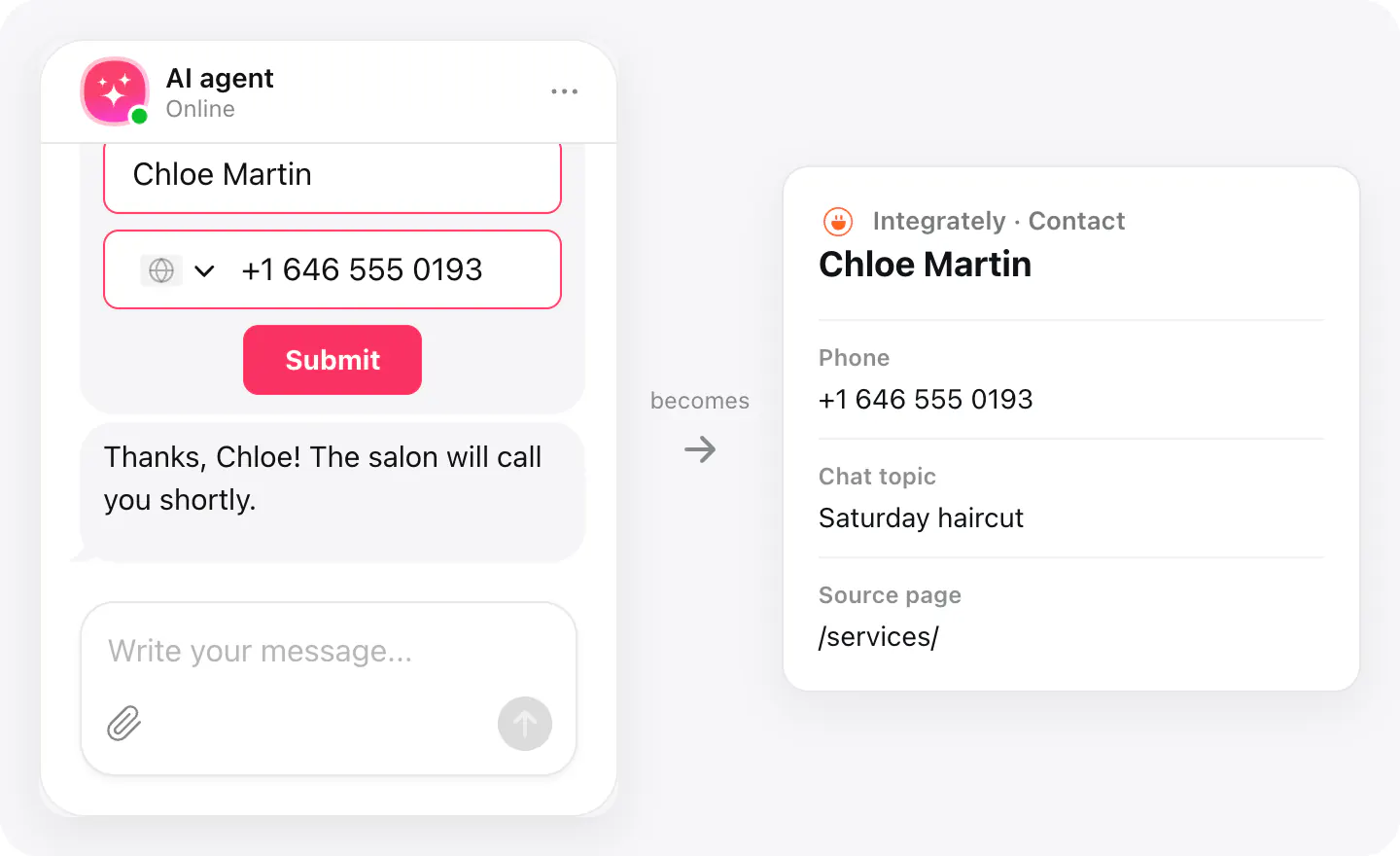
Add leads to your CRM
A visitor who leaves their details becomes a contact in your CRM, with the chat topic and the page they asked from.
Do you have any openings for a haircut on Saturday?
Leave your details, and the salon will call you to confirm a time.
Chloe Martin
Thank you! We'll be in touch shortly.
Thanks, Chloe! The salon will call you shortly.
Saturday haircut
Create a follow-up task
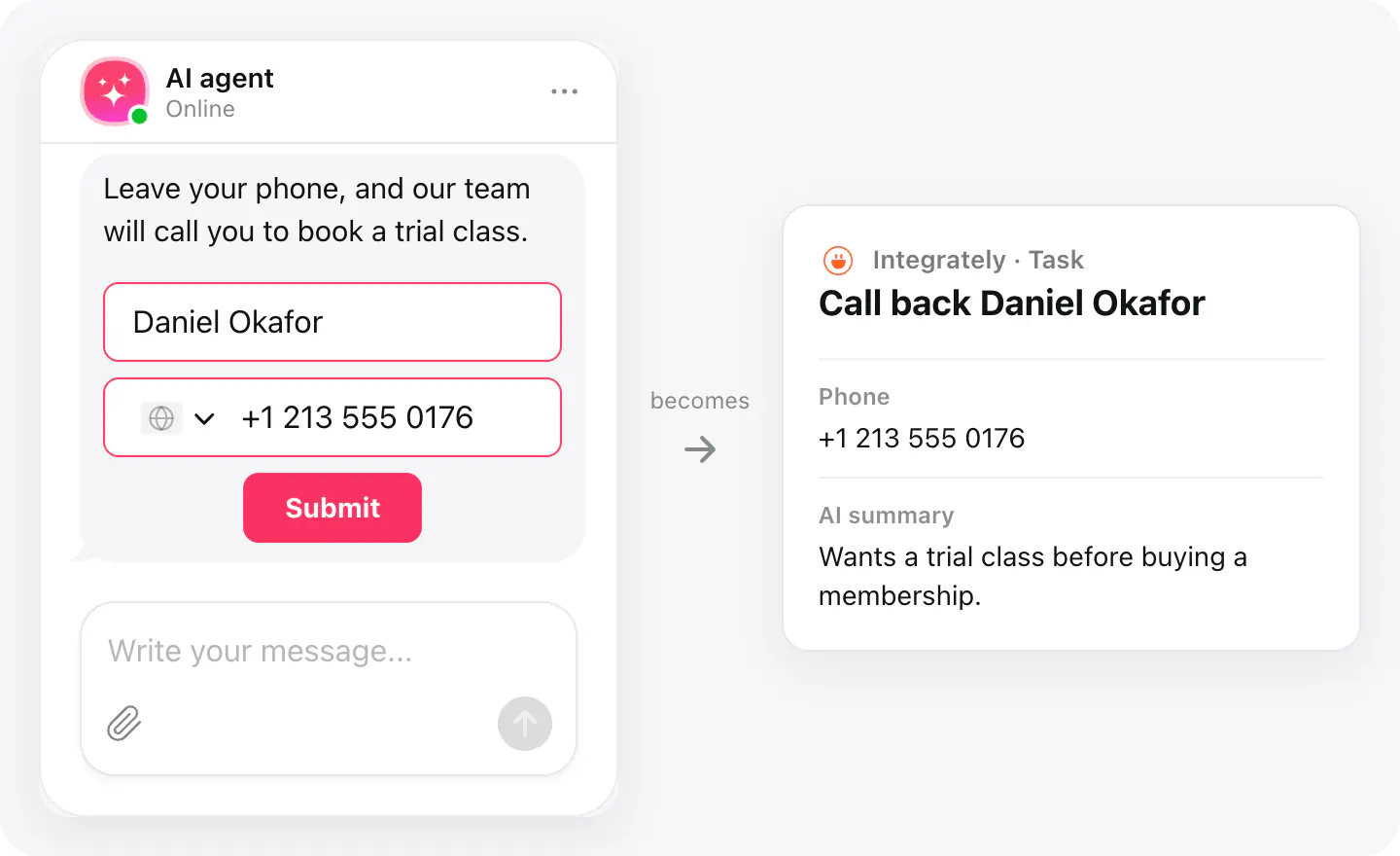
Turn a call-back request into a task for whoever handles it, with the AI summary so they know what the call is about.
I'd like to try a class before buying a membership.
Leave your phone, and our team will call you to book a trial class.
Daniel Okafor
Thank you! We'll be in touch shortly.
Call back Daniel Okafor
Wants a trial class before buying a membership.
Notify your team
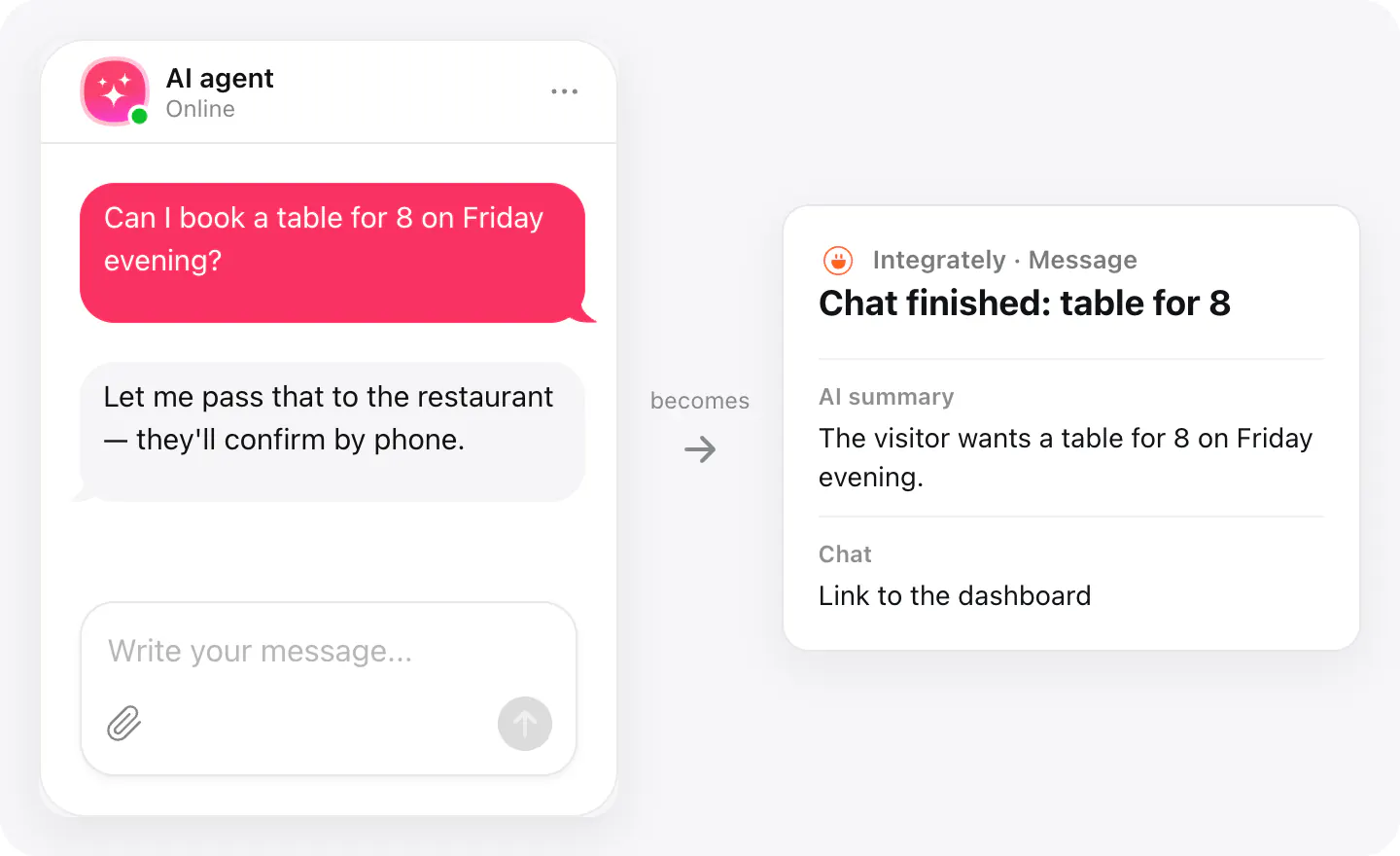
Send a message to your team when a chat ends, with what the visitor wanted and a link to the conversation.
Can I book a table for 8 on Friday evening?
Let me pass that to the restaurant — they'll confirm by phone.
Chat finished: table for 8
The visitor wants a table for 8 on Friday evening.
Link to the dashboard
Set up
The connection starts in Integrately, then finishes in your AI Chatbot widget. Chat data goes out when a conversation ends.
Create the automation on Integrately’s Elfchatbot page. The trigger there is Conversation is finished, and it fires instantly.
- Create an automation that starts with the Conversation is finished trigger.
- Copy the webhook URL Integrately gives you.
- Open your AI Chatbot widget, go to Integrations, choose Integrately and paste the webhook URL.
Connected apps and their status are listed in Integrations in your widget, where you can disconnect access at any time.
Requirements
- An AI Chatbot widget published on your site.
- An Integrately account.
What gets sent
What the integration passes on.
Name, email and phone, if the visitor left them
The visitor's consent, if you ask for it: the text and when it was given
Chat topic and an AI summary of the conversation
The page the chat started on
When the chat started and how long it lasted
The full transcript: who said what and when, with files the visitor attached
Questions the agent couldn't answer in this chat
Links to the chat and to unanswered questions in your dashboard
If nothing arrives
- Check the webhook URL. Paste the full https:// address Integrately gave you for this automation; if you made a new automation, its URL is new too.
- Check that the automation is on. While the automation is off, Integrately doesn't take chats in. Turn it back on, or paste the new automation's URL into your widget.
- Wait for the chat to end. A chat is sent when it ends: the visitor ends it, or nobody writes for a while (10 minutes by default).
How businesses use it
The same connection, set up for different kinds of business.
- Restaurants & cafésTable and event requests reach the manager as a message with the visitor's phone.
- Local & small businessLeads land in the CRM the owner already uses, with no one copying them from a chat log.