
WooCommerce WhatsApp Chat plugin
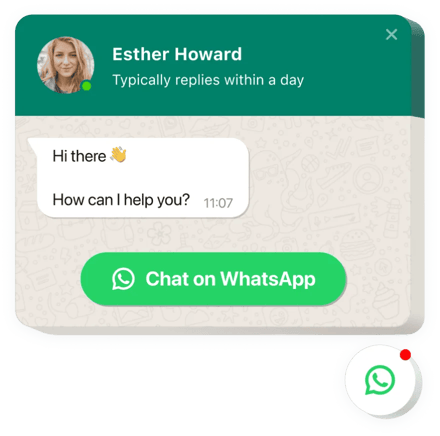
Create your WhatsApp Chat app
Screenshots
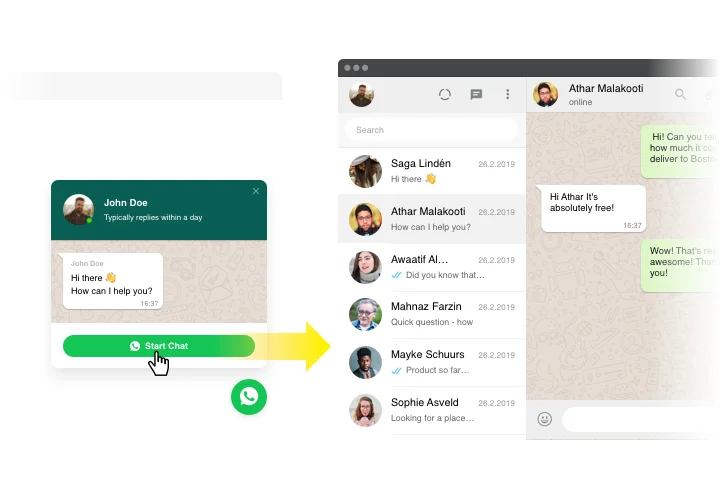
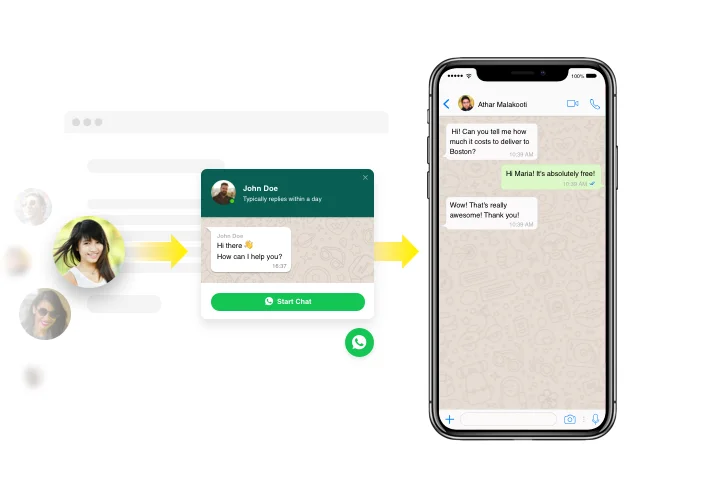
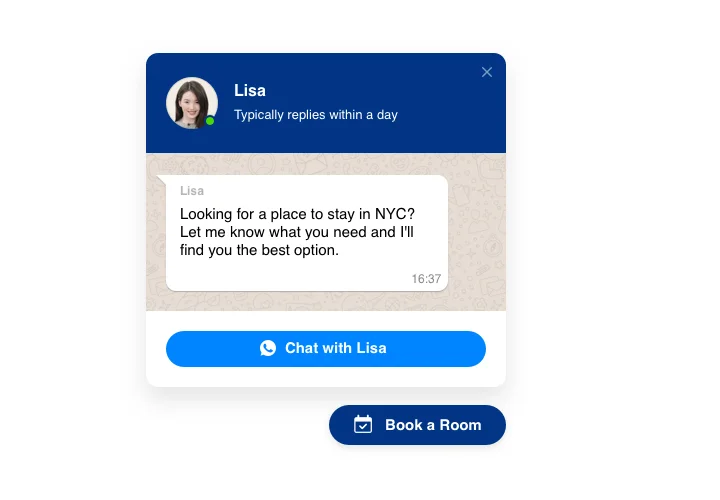
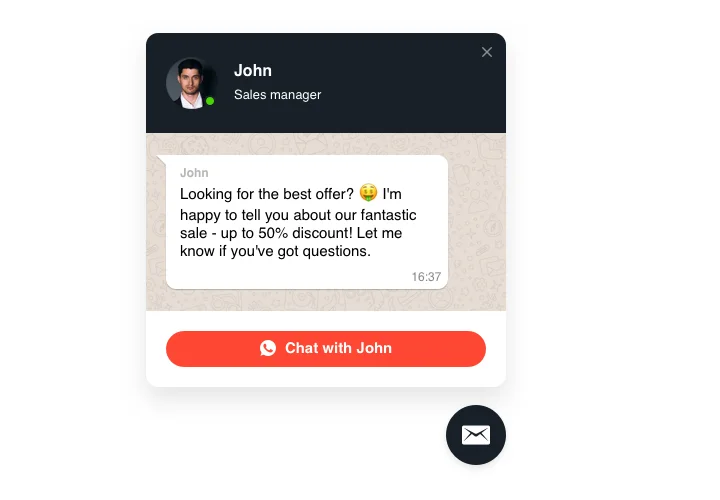
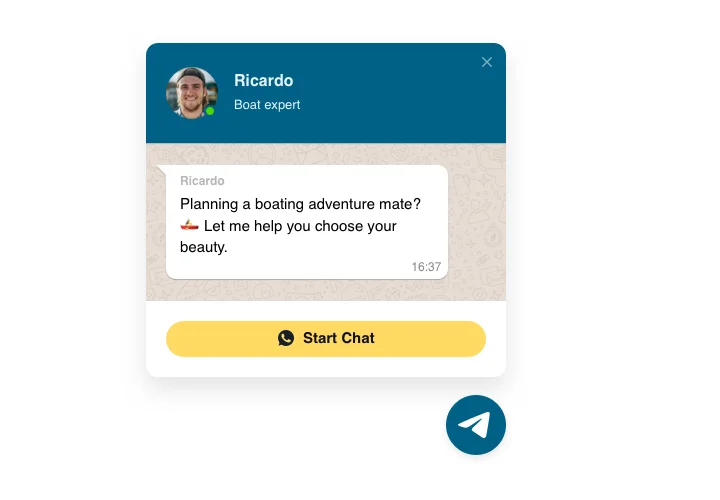
Add a WhatsApp button to your WooCommerce store
The Elfsight WhatsApp Chat widget acts as a direct bridge between your website and your WhatsApp account, letting visitors message you with a single click.
Decide who sees your WooCommerce WhatsApp plugin: show it on selected pages or for selected groups of customers. Set start-chat triggers and write your own welcome message, so every visitor gets the greeting you chose.
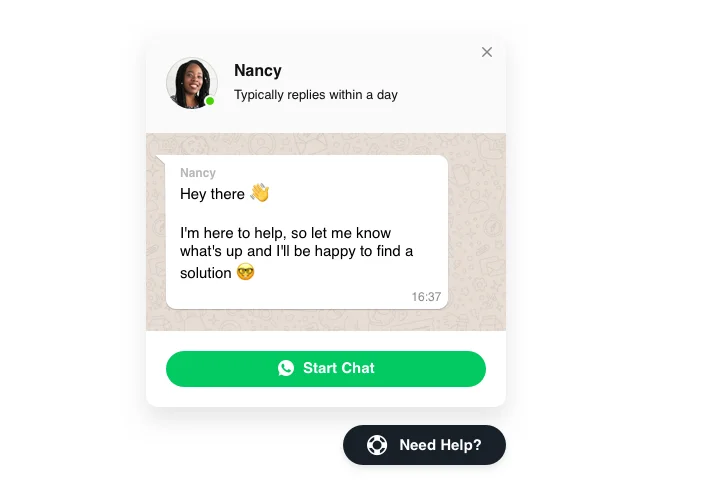
Pick a bubble icon from a set of icons and enter your own text for the bubble. Start from a template and alter its appearance to suit your brand style, so the WooCommerce WhatsApp Chat plugin looks like part of your store. You can try the configurator for free at any moment.
WhatsApp Chat features for WooCommerce
- 3 placement formats – choose a floating bubble, an embed bubble or an embed chat window.
- Start-chat triggers – set when the chat starts a conversation with your visitors.
- Welcome message – write your own greeting for the chat.
- Page and audience targeting – show the chat on selected pages or for selected groups of customers.
- Bubble icons and text – choose an icon from a set and enter your own text for the bubble.
- Templates and brand style – start from a template and alter its appearance to suit your brand.
How to add WhatsApp Chat to WooCommerce
Build your chat in the free Elfsight editor, then paste its code into your WooCommerce store.
Method 1: Add the chat to a page
- Open the Elfsight editor and set the interface and parameters of your chat.
- Choose the static (embed) layout.
- Click Add to website for free and copy your installation code.
- In WordPress, go to Pages and click Edit on the page.
- Insert a Custom HTML block where you want the chat.
- Paste the code into the block.
- Click Update and open the page to check the chat.
Method 2: Add the chat to all pages in a block theme
- Open the Elfsight editor, choose the floating layout and copy your installation code.
- In WordPress, go to Appearance → Editor.
- Open Footer.
- Insert a Custom HTML block and paste the code.
- Click Save and open your store to check the chat.
After installation, clear the cache if you use a caching or optimization plugin.
Why it fits WooCommerce stores
You do not need another plugin. The code goes in with the standard Custom HTML block or a WordPress widget, so there is nothing extra to update.
In a block theme, place the widget in the Single Product template and it appears on all product pages with one edit. To show the chat on every page, choose the floating layout in the Elfsight editor.