
Shopify Social Media Icons app

Create your Social Media Icons app
Screenshots
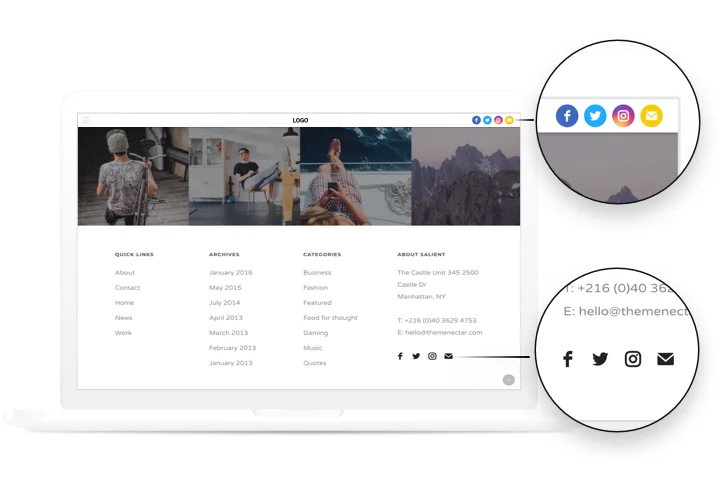
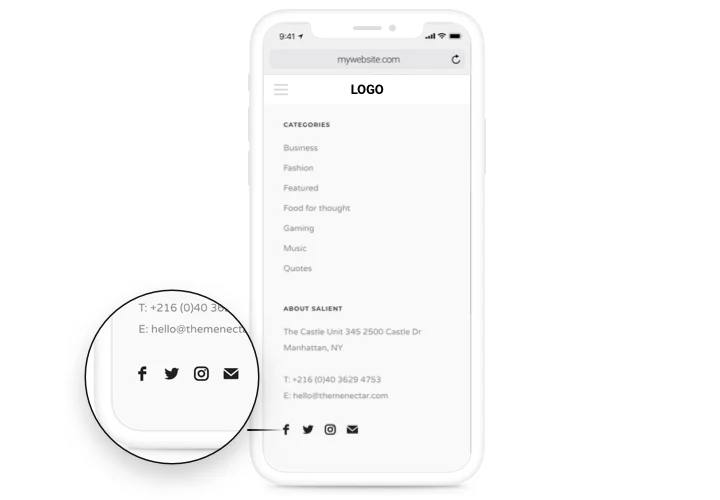
Show your social profiles in your Shopify store
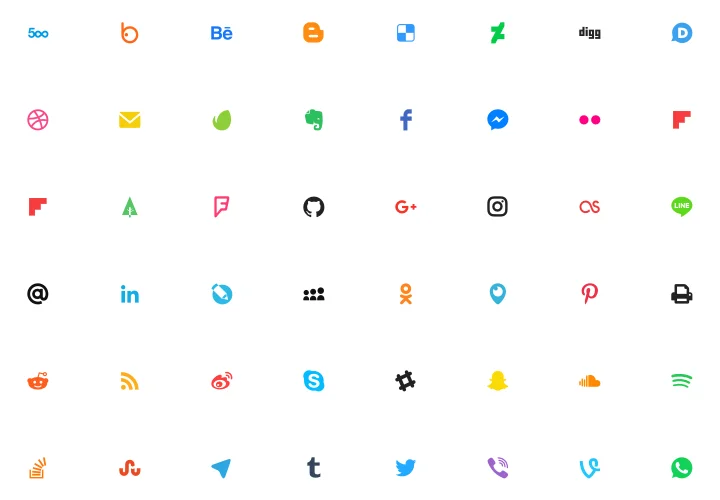
Link your store to over 50 platforms with Shopify social icons that match your theme. Pick the shapes, sizes, colors and styles, so every visitor knows where to follow you.
Place the icons in a header, a footer or a custom section, or use a floating layout that stays visible while customers scroll. Start with the free plan and add your profile links today.
Key Features of the Social Media Icons for Shopify
Elfsight gives you the tools to make your brand visible, personal and connected.
- Connect all your profiles: Link to over 50 platforms, including social networks, messengers and content platforms.
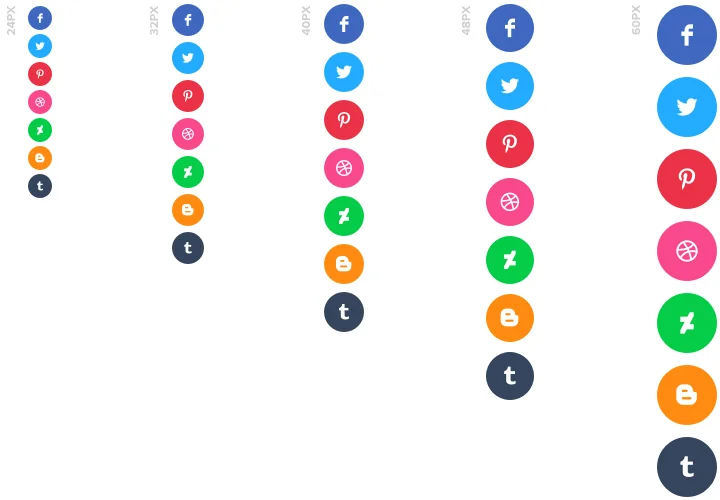
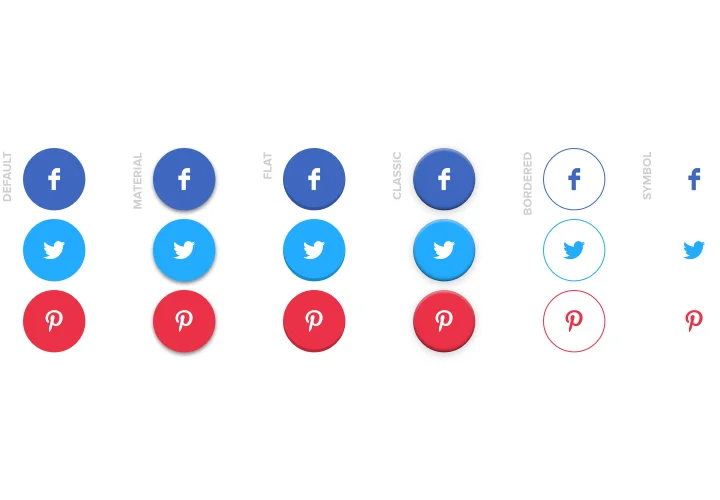
- Custom design: Pick icon shapes, sizes, colors and styles that fit your Shopify store’s theme, and add hover effects. You can even upload your own icons for a fully branded look.
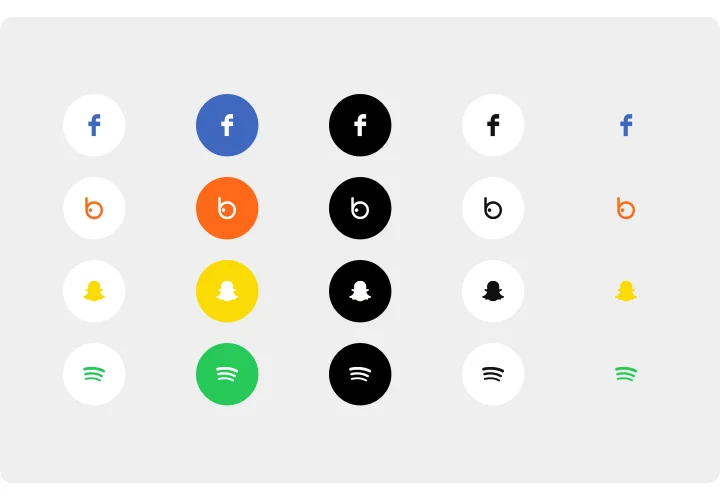
- Match your brand style: Use original brand colors or adjust shades to match your store’s color palette.
- Change icon colors: Switch icon colors in the editor to blend with your store.
- Flexible layout: Show icons in horizontal, vertical or grid formats, and adjust size, spacing, shape, border radius and alignment.
- Floating bar: Keep the icons visible while customers scroll.
Start creating your icon set for free in the Elfsight editor.
Add social icons to Shopify without editing theme code
On Online Store 2.0 themes, the code goes into a Custom Liquid section in the theme editor, without editing theme code. A section in the product template appears on every product page that uses this template. For a floating bar on all pages, insert the code once into theme.liquid. Edits you make in Elfsight update the widget in your store without re-saving the theme. Shopify’s Starter plan offers only the Spotlight theme, so you can’t add a section or code there.
Where to show your social icons
Social media icons for Shopify work best where shoppers already look for ways to follow you.
- Header: keep your profiles close to the navigation.
- Footer: add a clean row of icons at the bottom of every page.
- Product pages: add a section to the product template, and it appears on every product page that uses this template.
- Floating bar: keep the icons on screen while customers scroll.
How to add Social Media Icons to Shopify
Choose a method below: inline icons for a page or template, or a floating bar for all pages.
Method 1: Inline icons
- In the Elfsight editor, choose a layout and customize the icons.
- Click Add to website for free and copy the code.
- In your Shopify admin, go to Sales channels → Online Store → Edit theme.
- At the top, select the page or template where you want the icons.
- Click Add section and choose Custom Liquid.
- Paste the code into the Custom Liquid field.
- Click Save and check your storefront.
Method 2: Floating icons
- In the Elfsight editor, choose a floating layout and customize the icons.
- Click Add to website for free and copy the code.
- In your Shopify admin, go to Sales channels → Online Store, click the … button and select Edit code.
- Open Layout → theme.liquid.
- Paste the code before the closing </body> tag.
- Click Save and check your storefront.
Need more guidance? Visit our Help Center or check our blog tutorial on how to add social icons to Shopify. You can also suggest new ideas in the Wishlist or stay up to date with the Changelog.