
Blogger RSS Feed widget
Pull posts from several blogs and news websites into one feed on your Blogger website. It updates itself whenever a new article is published.
Create Widget for Free
No credit card needed
Trusted by over 3,000,000 small business, agencies and top global brands worldwide
Create your RSS Feed widget
Configure your RSS Feed and add it to your Blogger website for free!
Description
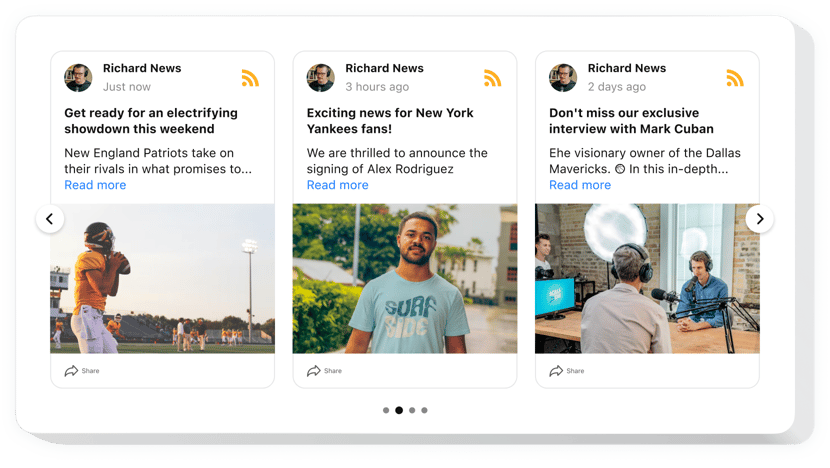
Show posts from many blogs and news websites in a single feed on your Blogger website. Each post card can include a title, author, date, source icon and an image, with an excerpt that opens the full content in a popup or via an external link.
The Blogger RSS Feed widget comes in six layouts and updates itself as new articles are published. Manual moderation lets you remove spam and unwanted content from the feed.
Key features of the RSS Feed widget
- Several sources in one feed – add unlimited RSS sources, from blogs and news websites to podcasts, in a single widget.
- Automatic updates – new articles appear in the feed as they are published, with no manual updates.
- Layouts – choose List, Carousel, Slider, Masonry or Grid.
- Popup mode – open posts in a popup as a slider or as a feed.
- Manual moderation – remove spam and unwanted content from the feed.
- Keyword filter and source selection – hide unwanted posts by keyword and limit the feed to specific blogs or websites.
- Post card elements – switch the author, date, source badge, share button and excerpt on or off independently.
- Images from RSS enclosures – featured images are taken from the feed and shown in post cards.
- Minimalist look – hide the head section of the widget.
Test all the settings in the live demo.
Made for Blogger
- One feed for several blogs – gather posts from many blogs and news websites in a single widget.
- Updates on its own – new articles appear automatically after they are published, with no manual updates.
- Not tied to one platform – the same widget works on any website platform that supports custom HTML, so you can use it beyond Blogger.
- Set up in the editor – choose a template, add the feed URL, copy the code and add it to your Blogger page.
How to add the RSS Feed widget to Blogger
Set up the feed in the Elfsight editor first, then add the code to your Blogger page. Need a hand? Elfsight support helps with installation questions.
Add the widget to a specific page
- Launch the Elfsight editor for the RSS Feed widget.
- Choose a template.
- Add the URL of your public RSS feed.
- Copy the embed code.
- Log in to your Blogger admin panel and click Pages.
- Choose the page where you want to add the widget.
- Click the pencil icon to edit the page.
- Switch to HTML view, paste the embed code and click Update.
- Click Preview to check how the feed looks on the page.
- Publish the page, then open it to check the feed.
Add the widget to all pages
- Log in to your Blogger admin panel and go to Theme.
- Select your website’s theme and click the arrow icon within Customize.
- Choose Edit HTML.
- Prepare the Blogger version of the code: the script tag plus the div with the class elfsight-app-WIDGET_ID, where you replace WIDGET_ID with the ID of your widget.
- Add the code before the closing </body> tag to place the feed in the footer, or right after the opening <body> tag to place it at the top of the pages.
- Click Save to apply the changes, then open your website to check the feed.
Where do I get the code to add to my Blogger page?
The Elfsight editor gives you the embed code once you have completed the widget customization and clicked “Add to website for free”. Copy it and add it to your page.
Can I add the widget to all pages or only the home page of my Blogger website?
Yes. You can add it to a specific page, to the home page or to all pages of your Blogger website. The home page and all pages methods use Theme → Customize → Edit HTML.
Which platforms does the widget support?
Any website platform that supports custom HTML, including WordPress, Shopify, Squarespace, Wix, Webflow and Blogger.
What feed URL can I add?
The URL of a public RSS feed. Private or protected feeds need public URLs or proxy services.
Who can help if I have installation questions?
Elfsight support helps with installation questions.
Can I show posts from more than one blog?
Yes. One widget supports unlimited RSS sources, including blogs, news websites and podcasts.
Does the feed update by itself?
Yes. New articles appear as they are published, with no manual updates.
Can I use private RSS feeds?
Only public RSS feeds are supported. For a private or protected feed, you need a public URL or a proxy service.
Can posts open in a popup?
Yes. Popup mode has two variations: slider and feed.
Can I hide posts I don't want to show?
Yes. Keyword filtering hides unwanted posts, and source selection limits the feed to specific blogs or websites.
What does each post card show?
An excerpt with the title, author, date, source icon and optional images. You can switch the author, date, source badge, share button and excerpt on or off independently.
Does the widget show images from posts?
Yes. Featured images are taken from RSS enclosures and shown in post cards.
Do I need to pay or enter a card to create the widget?
No. You can create a widget for free without entering any credit card details.
Pricing
14-day money back guarantee. Risk-free, you can cancel at anytime.
Elfsight Apps
Platform-independent solution
from $0 / month
start with a free plan
Unlimited websites
Fast and on-time support
Charge-free installation assistance
100% customizable