
Custom popups for your Shopify store
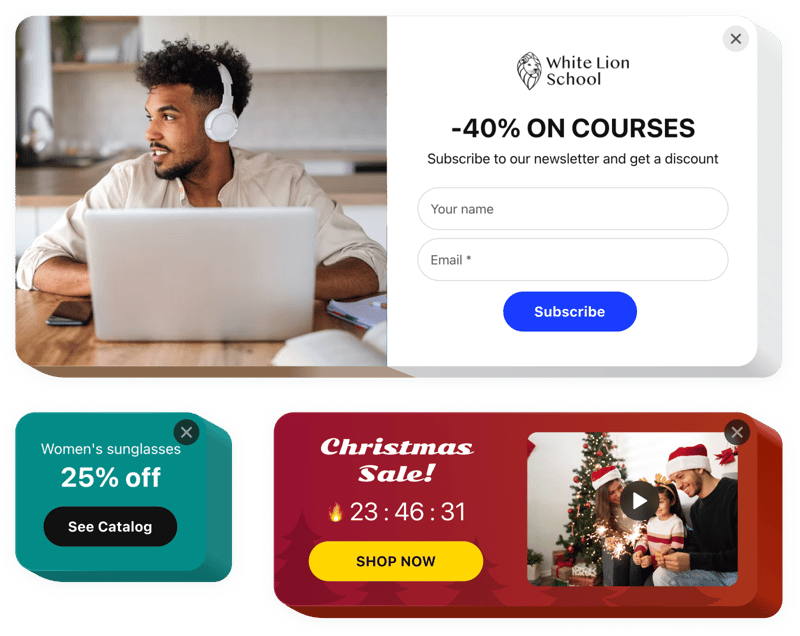
Create your Popup app
Screenshots
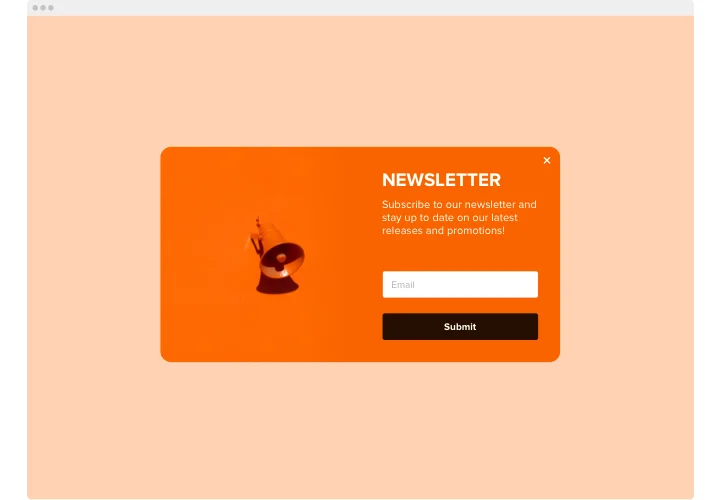
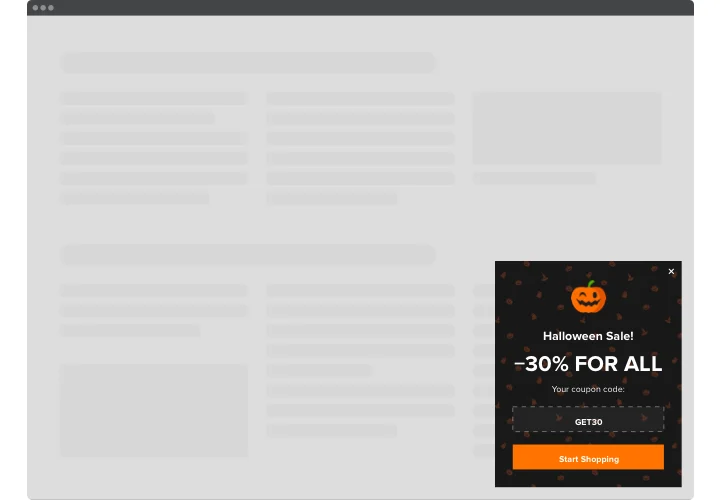
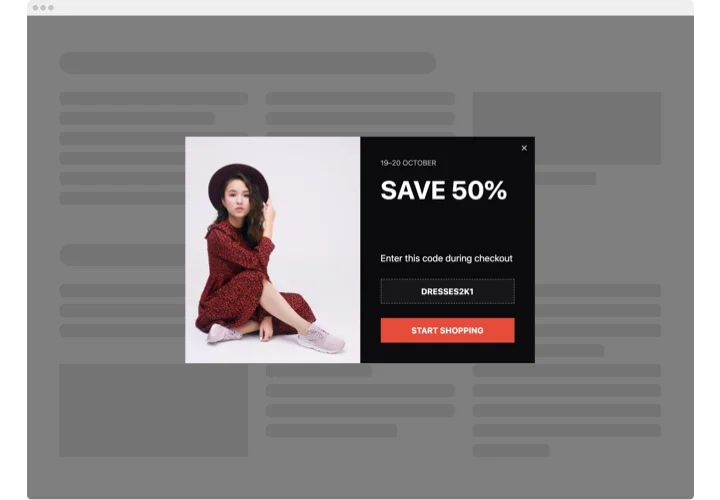
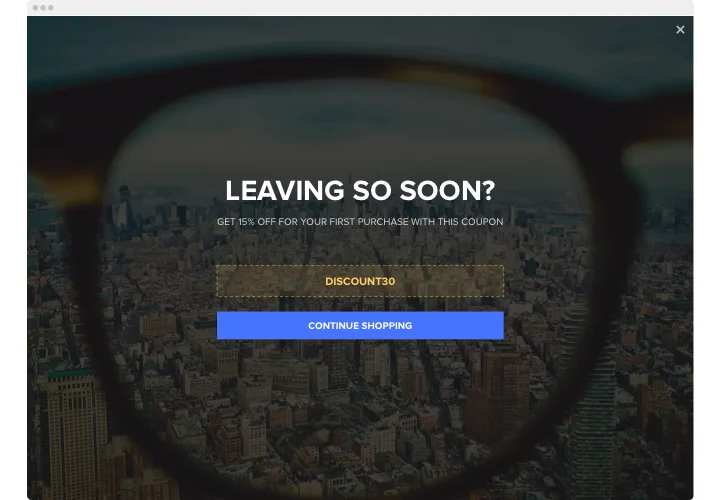
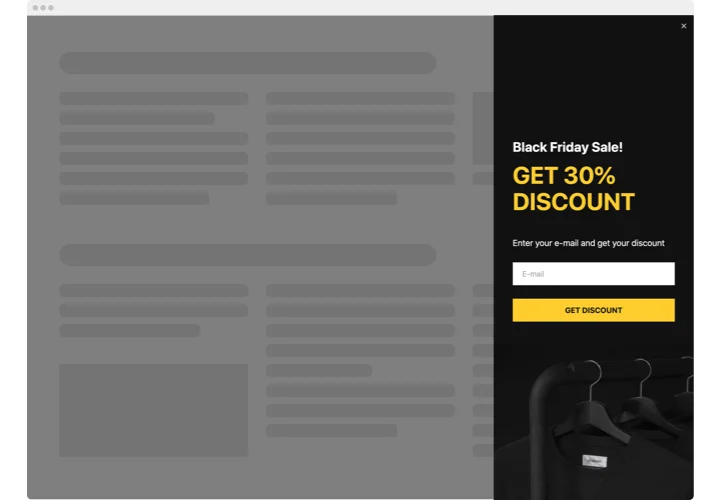
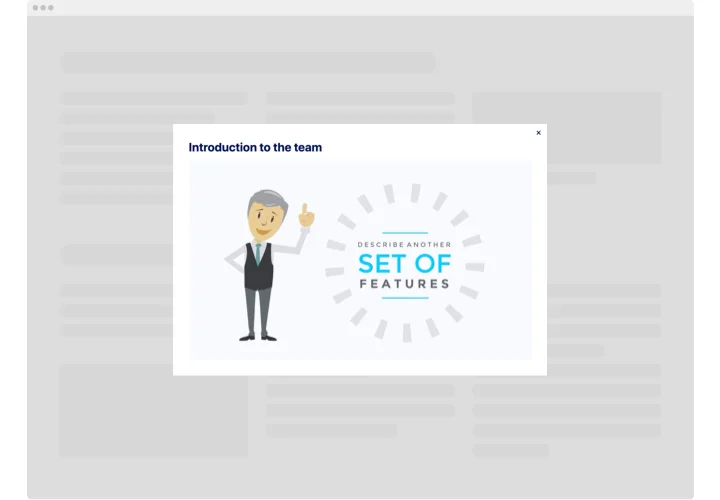
Why store owners choose Elfsight popups
A popup that greets every visitor on page load is easy to close without reading. With Elfsight, the popup can wait for a scroll, a click or an exit on desktop and show only on the pages you pick, so the offer reaches shoppers who are already browsing.
Coupons with a ticking clock
Shoppers copy your coupon with one click, so there’s no code to retype at checkout. Type one code for the whole sale, or add a list and let the popup pick one at random. Then add a timer that runs until the sale ends, or give every visitor a personal timer that starts the first time they see the popup.
Shown when shoppers are paying attention
Catch shoppers mid-browse – when they scroll, reach a block you choose, click your own button or move to leave on desktop – or simply on page load or after a few seconds. Turn on several, and whichever happens first opens it. Then decide how often it returns: every time, once, every day, every week, or until the shopper closes it, after which it comes back in 24 hours.
Pages, screens and sale dates under your control
Show the offer on product pages and keep it off the cart: pick pages by URL, or cover a whole group such as yourstore.com/products/* with one rule. Show it on desktop, tablet or mobile, and set start and end dates with a time zone, so a sale popup appears and ends on its own. For an evening offer, repeat it at the same hours every day.
Key Features: from codes to custom CSS
All seven features below come with the free plan – no trial clock attached.
- Coupons and countdown timers – one-click code copying, a list of codes picked at random, and a timer that ends on a set date or runs separately for each visitor.
- Smart triggers – open the popup as the page loads, after a few seconds, at a scroll percentage, when a chosen block comes into view, on a click or on exit intent on desktop, then cap how often it returns.
- Email sign-up form – grow your list with Email, Short text, Choice and Consent fields and conditional logic, and send new contacts to your inbox, Mailchimp or Google Sheets.
- Pages, devices and schedule – chosen URLs or page groups, desktop, tablet or mobile, and dates with repeats for recurring offers.
- AI Popup Generator – type a short description such as “Black Friday sale popup”, get the content drafted, then adjust the layout and style.
- Seven layouts – modal, left or right pane, left or right slide-in, and top or bottom bar, with a reopen button for modals, panes and slide-ins.
- Styled like your theme – the Default font follows your store’s font, and you set text and button colors, corner radius and custom CSS.
Build your first popup in the live editor and add it to your theme when it looks right.
Fits the Shopify theme you already run
- One paste covers the whole store – add the code to theme.liquid once, then choose the pages in the Elfsight editor instead of editing templates.
- Theme code can stay untouched – in Online Store 2.0 themes, a Custom Liquid section adds the popup to every page that uses the template you put it in.
- Edits without touching the theme – change the offer, the dates or a trigger in Elfsight, click Publish, and your store shows the new version without saving the theme again.
- Not tied to one store – the popup from elfsight.com works on any number of your websites, and the free plan has no time limit.
How to add the Popup to Shopify
Set up the popup in the Elfsight editor, grab the installation code with “Add to website for free”, then choose a method below. Prefer a longer walkthrough? Follow our full setup guide.
Good to know: the popup opens as a layer over the page, so where the code sits doesn’t change where it shows up – the layout you pick in the editor does. Code can’t be added on the Shopify Starter plan, and a paid theme on trial doesn’t let you edit its code until you buy it.
Method 1: Show the popup on every page (theme.liquid)
- In your admin, go to Sales channels → Online Store.
- Next to the current theme, click “…” and select Edit code.
- Open the Layout folder and click theme.liquid.
- Paste the installation code right before the closing </body> tag.
- Click Save, then open your store to see the popup on every page.
To limit it to some pages, keep this code and set the pages in the Elfsight editor.
Method 2: Add the popup to one template without code (Online Store 2.0)
- Go to Sales channels → Online Store and click Edit theme.
- Pick the template in the dropdown at the top – Home page opens by default.
- Click Add section and choose Custom Liquid.
- Paste the installation code into the field called Custom Liquid.
- Click Save: the popup appears on every page that uses this template.
If your theme lacks a Custom Liquid section, create one in Edit code → Sections with the section code from our Help Center, then add it the same way.
Method 3: Use Custom Content in a vintage theme
- Go to Online Store → Themes and click Customize.
- Choose the page you want in the dropdown above the preview.
- Click Add section → Custom Content.
- Remove the default blocks, then click Add block → Custom HTML.
- Paste the installation code into the HTML field, set Container width to 100% and click Save.
Vintage themes are the ones released before Online Store 2.0 in July 2021.
After saving, open your live store and trigger the popup the way a shopper would. Short on time? Our support team helps with installation: accept the collaborator request we send, or share a collaborator code on Starter and Basic plans.