
Joomla Popup extension

Create your Popup plugin
Screenshots
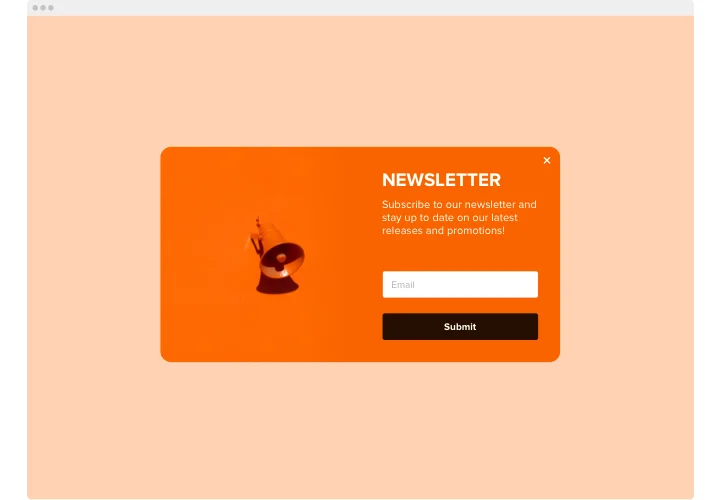
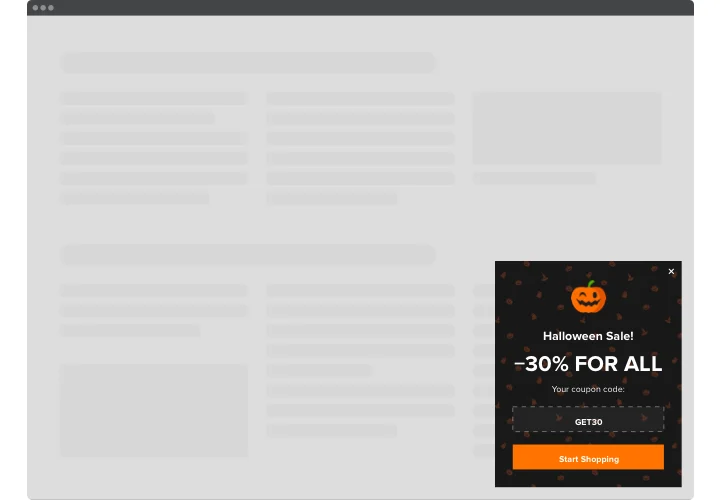
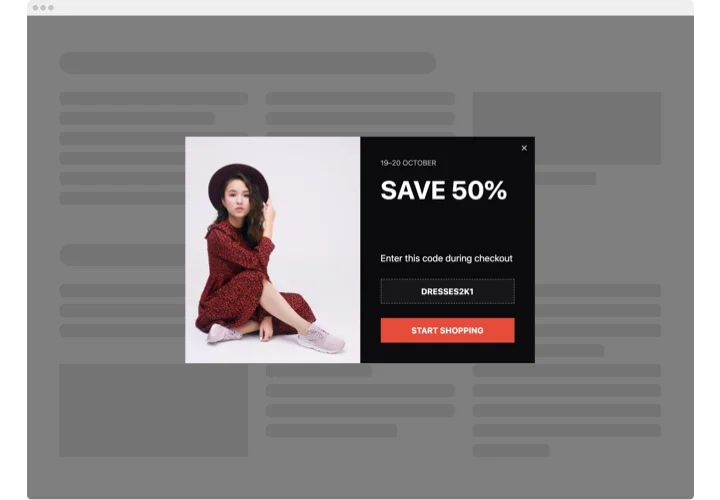
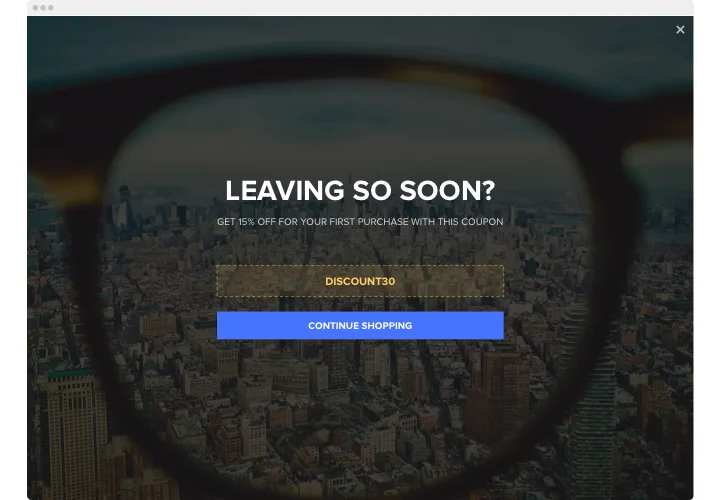
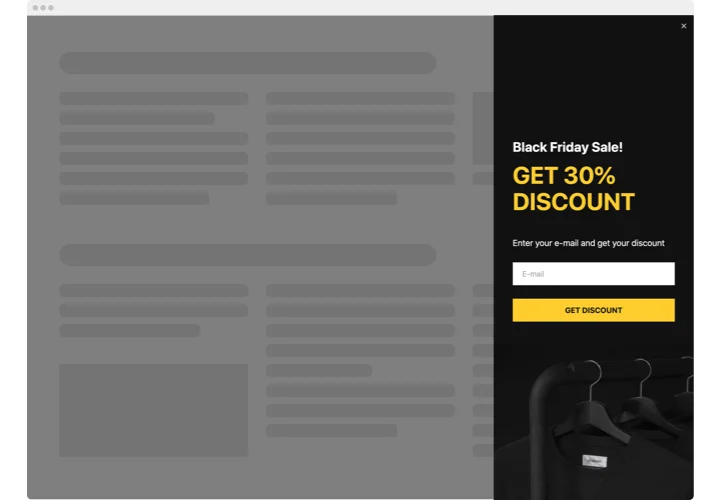
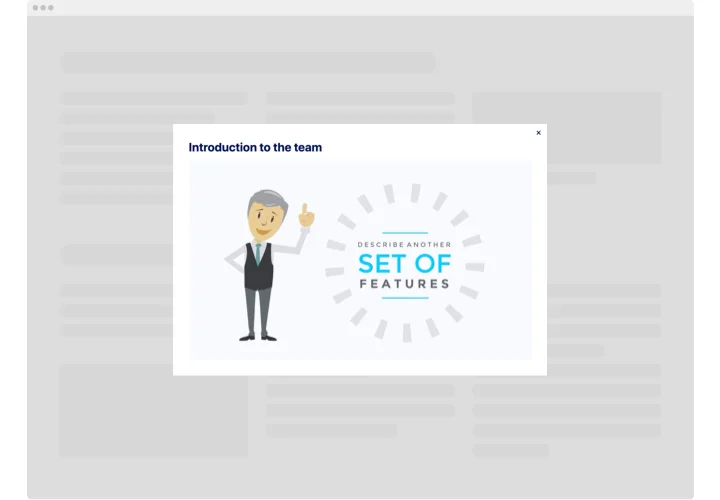
Why use Elfsight popups on Joomla
Give your visitors a reason to act instead of a static banner. Add a form, and every contact goes to your email, a Google Sheet or a Mailchimp list. Add a coupon with a timer, and shoppers copy the code in one click instead of retyping it from an image.
Show each popup where it matters: pick the pages, the devices (desktop, tablet or mobile) and the start and end dates, so every offer appears only when it makes sense.
Key features of the Joomla Popup extension
Built for popups that collect contacts, promote offers and show up at the right moment:
- Lead capture form – collect emails and other details in a contact form popup; entries go to email notifications and CSV export, or to Mailchimp and Google Sheets.
- Coupons with a timer – visitors copy the code with one click, and a timer can run separately for each visitor from the first display.
- Flexible triggers – show popups on page load, after a delay, on scroll, when an element comes into view, on click or on exit intent (desktop only). Combine triggers, and whichever activates first shows the popup.
- Display frequency – show a popup once, every day, every week or until the visitor closes it.
- Pages, devices and dates – show it on all, specific or excluded pages, on desktop, tablet or mobile, between the start and end dates you set.
- Customizable layouts and elements – assemble the popup from ready-made blocks and choose a layout that fits your message.
- Video and background picture – add a public YouTube or Vimeo video and upload a picture for the background.
- Mobile version – set separate text sizes and paddings for phones.
Popup layouts: modal, pane, slide-in and bar
Wondering about a modal versus a popup? A modal is one of the 7 layouts, so you can pick the shape that fits the message:
- Modal
- Left Pane and Right Pane
- Left Slide-in and Right Slide-in
- Top Bar and Bottom Bar
Place the popup full-screen or floating on the page, then fill it with any of the 14 elements.
Discover how the Joomla popup creator works with the free editor
How to add Popup to Joomla
Build your popup in the free Elfsight editor first. Choose a template, customize its content and appearance, and set the display triggers. Save your popup and copy the installation code.
Good to know: These instructions follow Elfsight’s Joomla 4 guide. When checking the popup, perform the action that triggers it, such as scrolling or clicking a button.
Method 1: Add the popup to a specific page
- Go to System → Site Templates in Joomla Admin.
- Select your active template and open index.php.
- Paste the first line of your installation code before </body> and save.
- Go to Content → Articles and open the relevant article.
- Click More → Source Code.
- Paste the second line of your installation code.
- Click OK, save the article, and check the published page.
Method 2: Add the popup to all pages
- Go to System → Site Templates and select your active template.
- Open index.php.
- Paste the complete installation code before </body>.
- Click Save and check your published website.
Method 3: Add the popup through template settings
- If index.php has no body tag, check your template settings for a custom code field such as Before </body>.
- Paste the complete installation code to display the popup on all pages.
- For a specific page, insert only the first line here, then follow Method 1 from step 4.
- Save and check your website.
Our support team can help you install the widget on your website.