
WordPress Podcast plugin
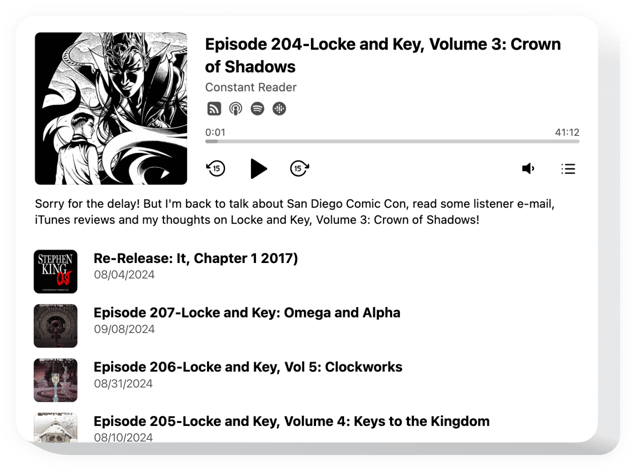
Create your Podcast Player plugin
Screenshots
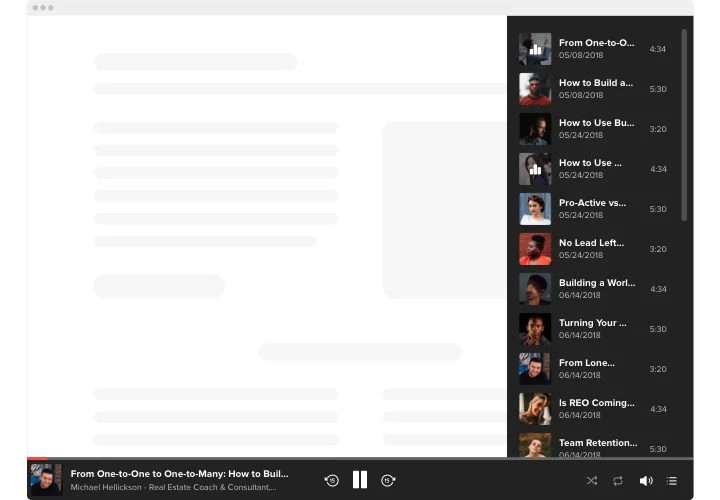
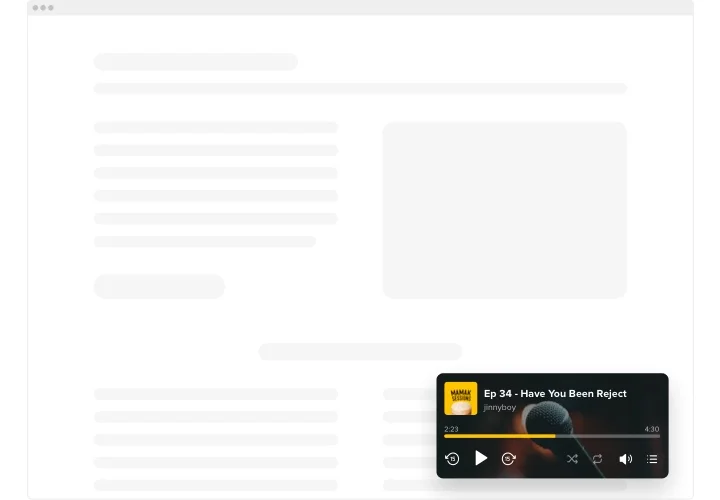
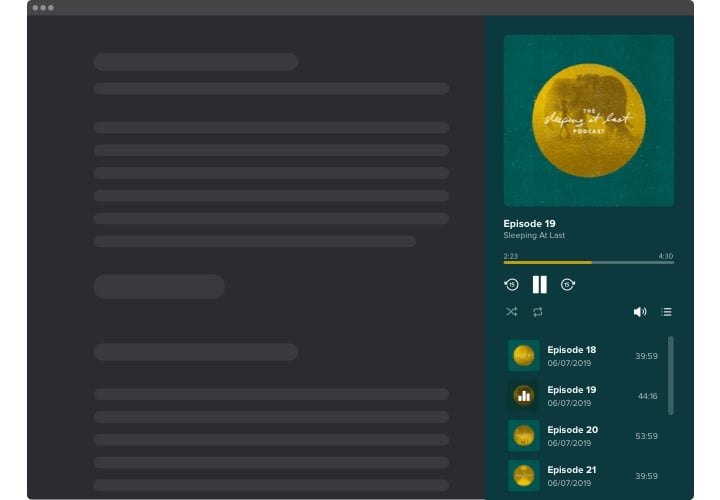
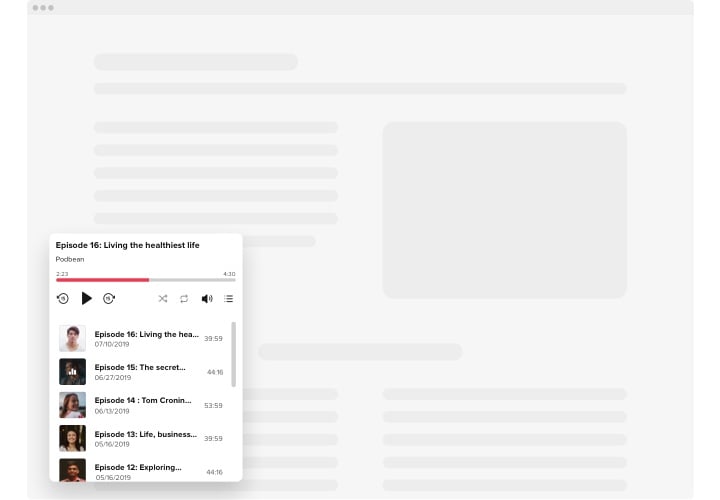
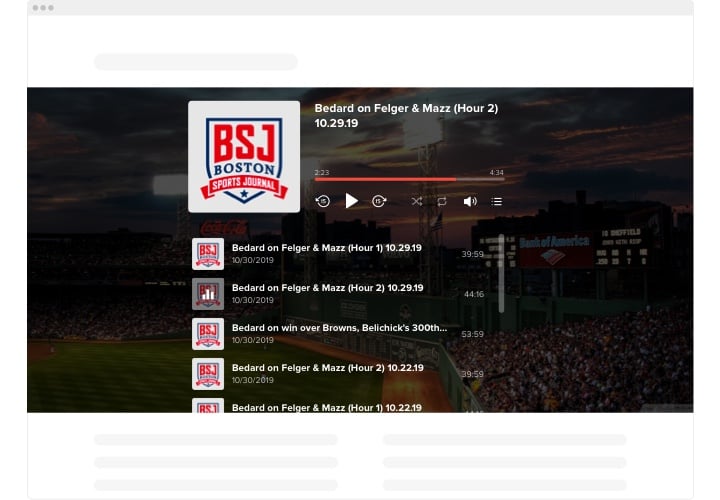
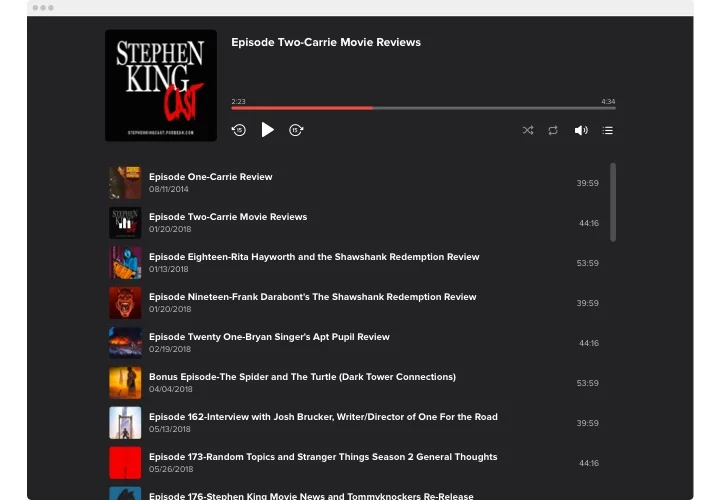
Why play your podcast on your own website
Your blog readers and the clients who browse your services are already on your website. When the episodes play on the same page, they can listen without opening an app or looking for your show on a podcast platform.
Use the player for a weekly show, a series of interviews or any other audio you publish in a feed, and put it where it fits: on a dedicated podcast page, inside a blog post or next to the service an episode talks about.
Key Features
Each of these comes with the free plan too:
- Auto-updating episodes – paste your feed link once, and every episode you release shows up in the player without uploading files or editing the page.
- Searchable episode playlist – Playlist Search finds episodes by keyword, and each one in the list shows its cover, artist, duration and date, with the description one click away.
- Floating player with saved progress – pin the player to one of five screen positions so it stays in view while visitors scroll; after a reload, or on another page with the widget, the episode picks up where it stopped.
- Styled to your website – Light or Dark with your accent color, or custom colors with a background image; the player uses your website’s font by default and can show progress as a waveform.
- Listen-on buttons – visitors who prefer an app can jump to your show on the podcast platforms you link; a button appears only for the links you fill in.
- Controls you choose – show only what your listeners need: track controls, volume, the playlist and playback speed each switch on or off separately.
- Your labels, your language – rename or translate the 13 player labels, from Playlist to Playback Speed, so the player reads like the rest of your pages.
Made for WordPress themes and page builders
Unlike a typical WordPress podcast plugin, there’s nothing to install, activate or update in your dashboard: the player runs on Elfsight’s side, and your pages hold only its code.
- Classic or block theme – whichever your website uses, adding the player to a page works the same way, with one Custom HTML block.
- Elementor and WPBakery – add it with the HTML element, available in free Elementor, or with the Raw HTML element in WPBakery Page Builder.
- Every page, one player – in a classic theme, a floating player placed in a widget area follows visitors around your website, and the episode they started is waiting on the next page.
- Client websites in one account – agencies manage every client’s player from a single Elfsight dashboard and change its settings there, without logging in to each admin panel.
- One edit, every page – change the colors, layout or labels in Elfsight, publish, and each page holding the code shows the new version.
How to add the Podcast Player to WordPress
Start in the Elfsight editor: on the Tracks tab, paste your podcast’s RSS feed link, then pick a layout and style the player. Click Add to website for free, copy the installation code and use whichever method below suits your theme or page builder.
Good to know: on WordPress.com, the code needs a paid plan – on the free plan it shows up as plain text. On a self-hosted website any plan works, but only an Administrator or Editor can save the code; for other roles the script is removed when the page is saved.
Method 1: Custom HTML block on a single page
- In your dashboard, go to Pages, hover over the page and click Edit.
- Click the blue + (Block Inserter) and search for Custom HTML.
- Drag the block to the spot where the episodes should play.
- Click Edit HTML and drop the code into the pop-up window.
- Click Update, then Save the page.
- Open the page as a visitor and play an episode.
WordPress versions before 7.0 have no Edit HTML button – paste the code straight into the block.
Method 2: Floating player across all pages (classic themes)
- In your Elfsight widget, switch Layout to Floating and decide which of the five screen positions the player takes.
- On the Player tab, turn on Save Playing Track and Progress.
- In your dashboard, go to Appearance → Customize → Widgets.
- Open a widget area that shows on every page – usually the footer, depending on your theme.
- Click the blue +, add a Custom HTML widget and paste the code into its HTML field.
- Click Publish, start an episode and open another page to check that it continues from the same moment.
This method needs a classic theme with widget areas; on a block theme, our support team can help with installation instead.
Method 3: Use the HTML element in Elementor
- Go to Pages and open the page with Edit with Elementor.
- Type HTML into the search field of the elements panel.
- Drag the HTML element into the section where the player belongs.
- Drop the snippet into the element’s HTML Code box.
- Hit Publish and play an episode on the live page to confirm it works.
Pick HTML rather than Custom HTML – with Custom HTML the player may not work correctly.
Method 4: Use the Raw HTML element in WPBakery Page Builder
- In Pages, hover over the page and click Edit with WPBakery Page Builder.
- Click the ➕ icon, search for Raw HTML and add the element.
- Drop the code into the element’s text area and save it.
- Close the element window and click Update to publish the page.
The Raw JS element also works, but then the player won’t appear inside the WPBakery editor.
After publishing, open the page in a private window and play an episode; if a caching plugin is active, clear its cache first. Rather have us do it? Add support@elfsight.com under Users → Add New with the Administrator role, and our support team will help with installation.