
Elementor Countdown Timer widget
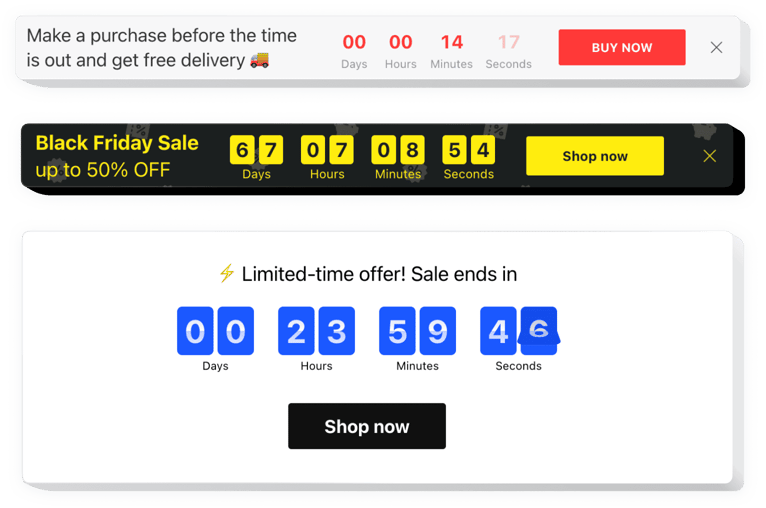
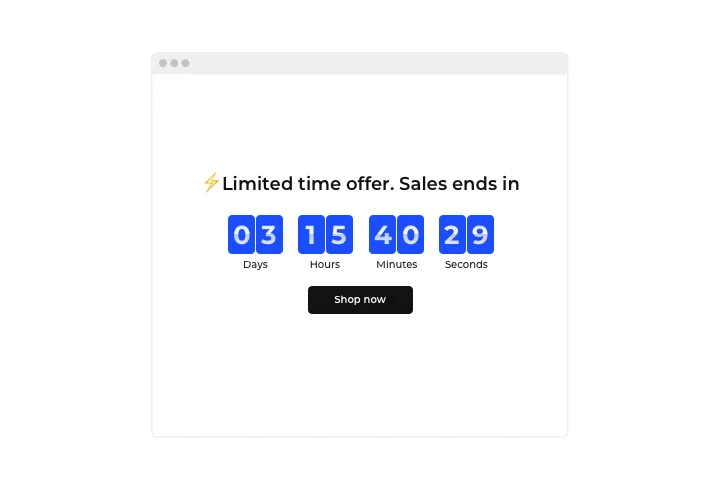
Start a countdown to your sale or event on any Elementor page: count up or down, set a time zone, or give each visitor a Personal Countdown.
Create Widget for Free
No credit card needed
Trusted by over 3,000,000 small business, agencies and top global brands worldwide
Create your Countdown Timer widget
Configure your Countdown Timer and add it to your Elementor website for free!
Screenshots
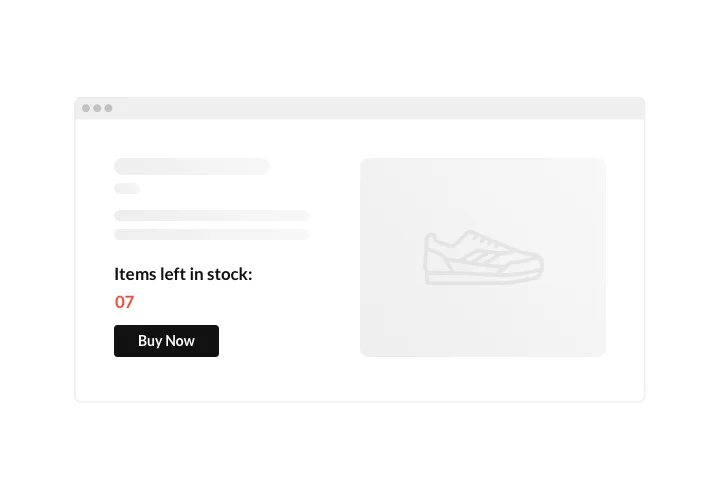


Embed Countdown Timer on Elementor with the Elfsight widget
Pick the countdown that fits your goal and show it right where visitors make their decision.
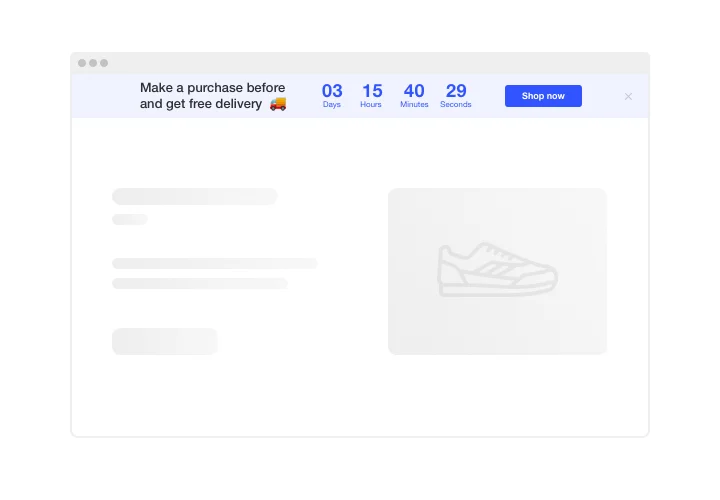
- Sale with a deadline. Count down to the end of an offer so shoppers see how much time is left to buy at your price. Set a time zone and everyone sees the same clock.
- Dropping stock. Use the Number Counter to show a number going up or down, for example items left, so your product feels more valuable.
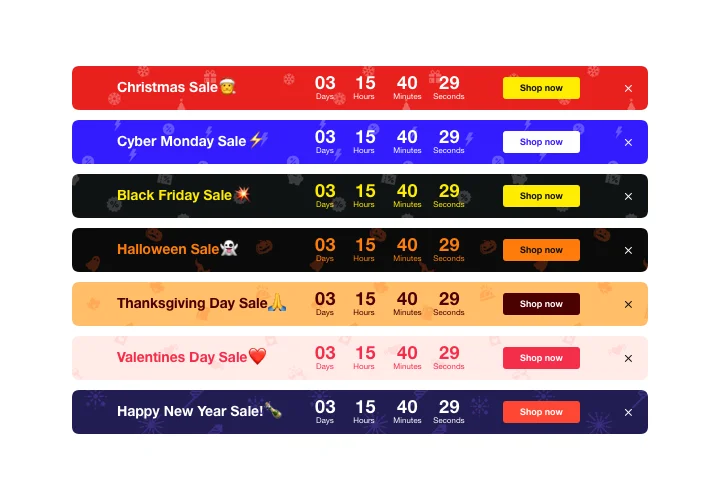
- Holiday timer bar. Announce a coming holiday or event with a ready-made seasonal style such as Black Friday, Christmas or Halloween.
Main features of the Elementor Countdown Timer
Start with the three timers that cover most campaigns:
- Up and down counter – count down to a deadline or count up from a starting value.
- Countdown to Date – set the end date and a fixed time zone, so every visitor sees the same synchronized countdown.
- Personal Countdown – give each visitor an individual timer for evergreen offers.
Then fine-tune the details:
- When time is up – hide the timer, show a message or redirect visitors to another page.
- Action button – link it to a URL, an email, a phone number or a form.
- Seasonal themes – apply ready-made holiday styles, such as Black Friday, Christmas or Halloween.
- Any time unit on or off – show only the days, hours, minutes or seconds you need.
- Colors and sizes – change the colors of the timer, button, labels and message, and adjust the size of the timer and button.
- Google Analytics events – track timer events in Google Analytics.
Try every option in the live editor for free.
Made for Elementor
- Works on free Elementor – add it through the standard HTML element, no Elementor Pro needed.
- Fits any section, column and template, so you can place the timer where it matters.
- Update once, change everywhere – one edit in Elfsight updates the timer on all pages and templates.
- Check the published page – the widget may not appear in the Elementor editor until you publish or preview.
Why use Elfsight Countdown in Elementor
Build your Elementor Countdown widget in a free editor and keep control of the details:
- No Elementor Pro needed to add it with the HTML element.
- Personal Countdown gives each visitor an individual timer.
- A fixed time zone keeps the countdown synchronized for everyone.
- Timer events can be tracked in Google Analytics.
- Ready-made seasonal styles save you design time.
How to add Countdown Timer to Elementor
Create your timer in the Elfsight editor and copy the installation code, then choose where it should appear: one page, or all pages.
Method 1: Add the timer to one page (Elementor Free)
- Open Pages in your WordPress dashboard and click Edit with Elementor next to the page.
- In the widgets panel, search for HTML.
- Drag the HTML element into the section where the timer should appear.
- Paste the installation code into the HTML Code field.
- Click Publish.
Good to know: on a single page, use the HTML element, not Custom HTML – Custom HTML can make the widget work incorrectly.
Method 2: Add the timer to all pages (Elementor Pro)
- In your WordPress dashboard, go to Elementor → Editor → Custom Elements.
- Open Code and click New code.
- Name the code and paste the installation code.
- Set the display condition to all pages.
- Click Publish.
Method 3: Add the timer to all pages (Elementor Free, classic themes only)
- In your WordPress dashboard, go to Appearance → Customize → Widgets.
- Open a widget area that appears on every page, for example the footer.
- Click + and select Custom HTML.
- Paste the installation code and click Publish.
After publishing, check the timer on the live page and clear the cache if you use a caching plugin. Need a hand? Contact Elfsight support and we will help you with the installation.
Does the Countdown Timer work inside Elementor templates?
Yes, you can place the widget in section, header, footer or product templates.
Do I need Elementor Pro to use Elfsight?
No, the widget works with Elementor Free through the HTML element. Some advanced display and layout options may need Pro.
Should I use the HTML or the Custom HTML element?
Use the HTML element when you add the timer to a single page. Custom HTML is for the footer widget area on all pages.
Can I show the timer on all pages?
Yes. In Elementor Pro, add it under Custom Elements and set the display condition to all pages. In Elementor Free with a classic theme, add it as a Custom HTML widget in the footer area.
Why doesn't the timer appear after I publish?
Check that the code sits in an HTML element and that the page is published, then clear the cache if you use a caching plugin. The widget may also not show in the Elementor editor until you publish or preview.
Can I add the timer to WordPress.com with Elementor?
Yes, WordPress.com now documents plugin installation on all paid plans.
Can the Countdown Timer count up instead of down?
Yes, the timer counts up as well as down. With the Number Counter type you set custom starting and ending values so numbers increase.
Can I schedule a delayed start in Elementor?
Yes, choose the Countdown to Date type and set a Start Time, and the timer begins at your selected moment.
What happens when the timer reaches zero?
You choose: hide the timer, show a message or redirect visitors to another page.
Does the timer support fixed time zones?
Yes, a fixed time zone shows every visitor the same synchronized countdown.
Can the countdown repeat, and what is a Personal Countdown?
Yes. Countdown to Date allows yearly or scheduled repetition, and a Personal Countdown gives each visitor an individual timer.
Are seasonal themes available for the timer?
Yes, ready-made holiday styles such as Black Friday, Christmas and Halloween are available.
What button actions can I add to the Countdown?
Buttons can link to a URL, an email, a phone number or a form.
Can I track timer interactions in Google Analytics?
Yes, timer events can be tracked in Google Analytics.
Can I use the Countdown Timer for free?
Yes, you create the widget in a free editor and can start for free.
Countdown Timer Template Catalog
Choose from our ready-to-use widget templates to use as is, or customize them to suit your style.

Add an engaging timer that resets after a specific time period straight to your website.

Add an extra layer of excitement to your sales campaigns with this timer template.
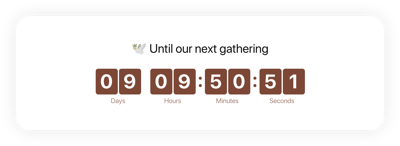
Adding the timer template to your website can skyrocket church service attendance.
Pricing
14-day money back guarantee. Risk-free, you can cancel at anytime.
Elfsight Apps
Platform-independent version
from $0 / month
start with free plan
Unlimited websites
Dedicated and on-time support
Free installation help
Limited time offer for multiple apps
Fully customizable