
Back to Top Button for Squarespace
Create your Back to Top plugin
Screenshots
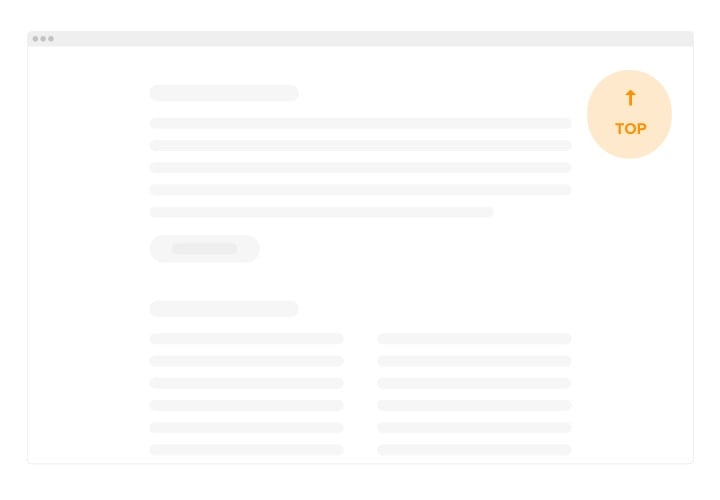
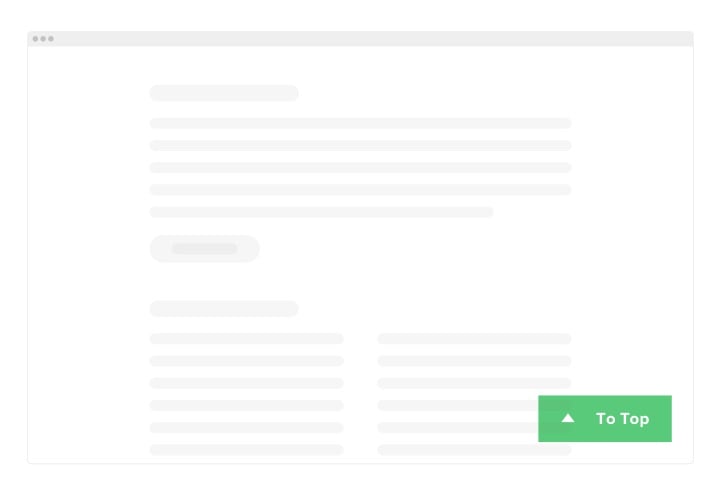
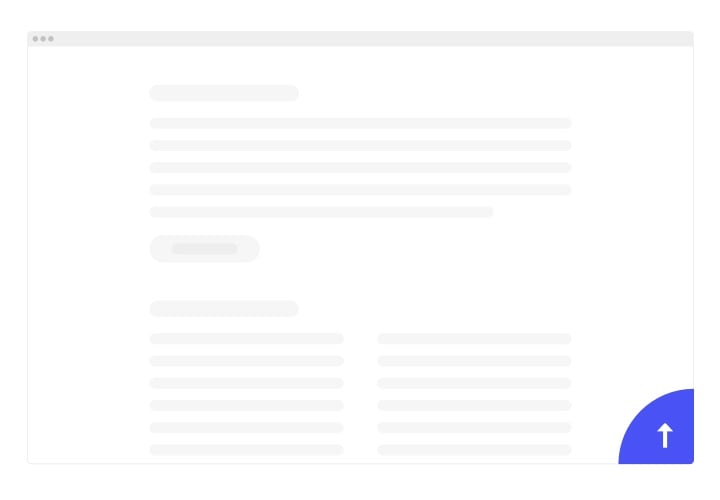
Get Visitors Back to the Top of Long Pages
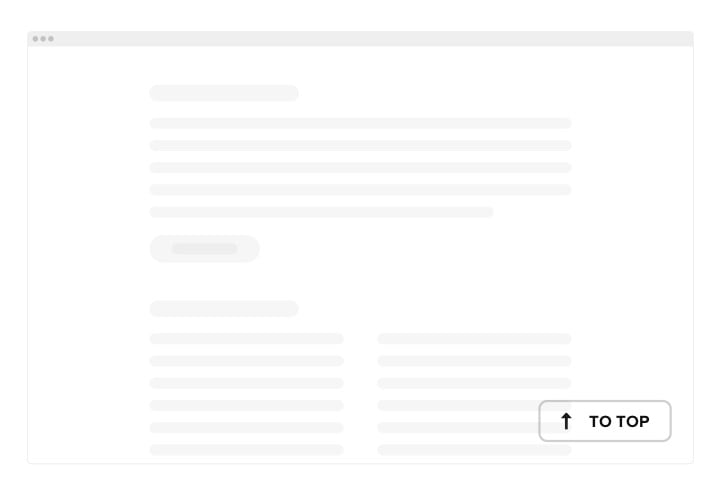
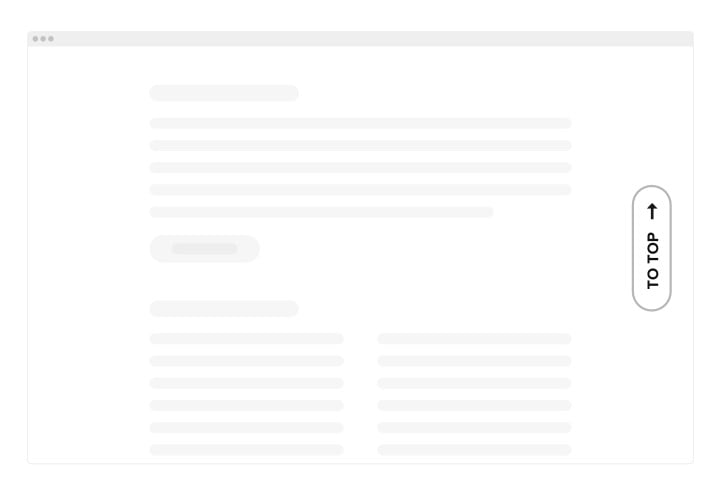
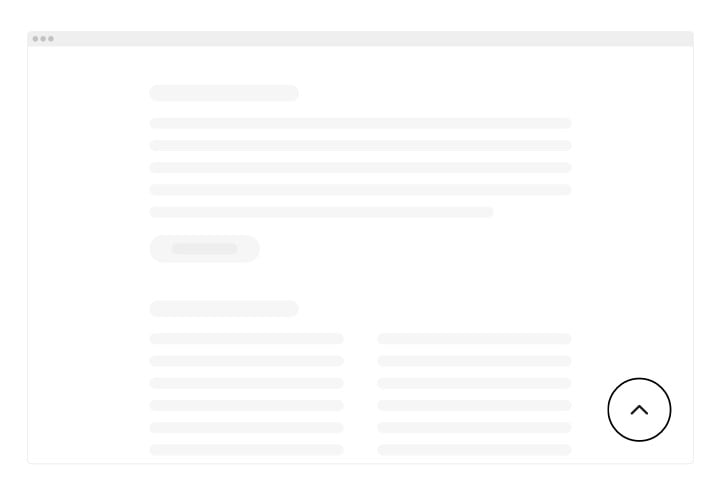
On a long page, visitors have to scroll a long way to get back up. The Back to Top widget adds a button that returns them to the top, and the page scrolls up with a smooth motion instead of a jump.
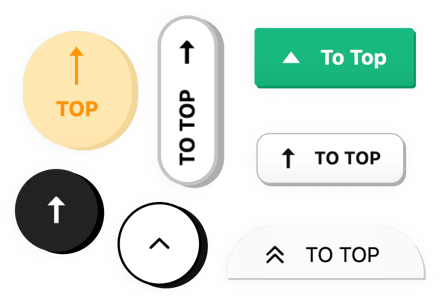
You can pick icons, colors and shapes and choose where the button sits, so it matches your Squarespace design.
Key Features of the Back to Top Widget
These are the settings you can adjust:
- Fully customizable: pick icons, colors and shapes to match your brand.
- Smooth scrolling: the page scrolls up with a smooth motion instead of a jump, and you can adjust the animation timing.
- Smart visibility: the button stays hidden until the visitor scrolls down and appears after the scroll percentage you configure.
- Flexible positioning: place it in any corner of the screen or embed it inside your page layout.
- Mobile-friendly: the button adjusts to smaller screens and supports tap interaction.
- Page control: show the button across your website or hide it on selected URLs.
You can try all these features in the live editor without signing up.
How to Add the Back to Top Button to Squarespace
Get your code in the Elfsight editor, then add it to Squarespace. Check your plan first: on Core, Plus and Advanced (formerly Business and Commerce) you use a Code block or Code Injection, and on Basic (formerly Personal) you use an Embed block with Code Snippet.
Method 1: Floating Button on All Pages (Core, Plus, Advanced)
Choose this if you want the button to stay visible as visitors scroll.
- Open the Elfsight editor and choose a Back to Top template.
- Adjust the icons, colors, shapes and position.
- Click Add to website for free and copy your code.
- In Squarespace, go to Website → Pages.
- At the bottom of the left menu, open Custom Code → Code Injection (Squarespace 7.0: Website Tools → Code Injection).
- Paste the code into the Footer field.
- Click Save, then open your published website in an incognito window to check the button.
Method 2: Floating Button on All Pages (Basic)
Use this if your website is on the Basic plan and has a footer.
- Copy your code from the Elfsight editor with Add to website for free.
- Open your website in the Squarespace editor and click Edit.
- Hover over the footer and click its edit button.
- Click Add Block → Embed.
- Click the pencil icon and choose Code Snippet.
- Paste your code into the Embed data field.
- Click Save, then check your published website.
Method 3: Inline Button on a Page (Core, Plus, Advanced)
Great if you want the button to sit inside your page layout.
- Copy your code from the Elfsight editor with Add to website for free.
- In Squarespace, go to Website → Pages and open the page you need.
- Click Edit and choose the place for the button.
- Click Add Section → Add a blank section → Add block → Code.
- Paste your code into the Content field.
- Click Save, then open the published page to check the button. On Basic, use Add Block → Embed → Code Snippet instead of Code.
Need some help? Check out our Help Center for detailed step-by-step guides. You can also share ideas in the Wishlist or stay updated via the Changelog.