
WordPress FAQ plugin
Create your FAQ plugin
Screenshots
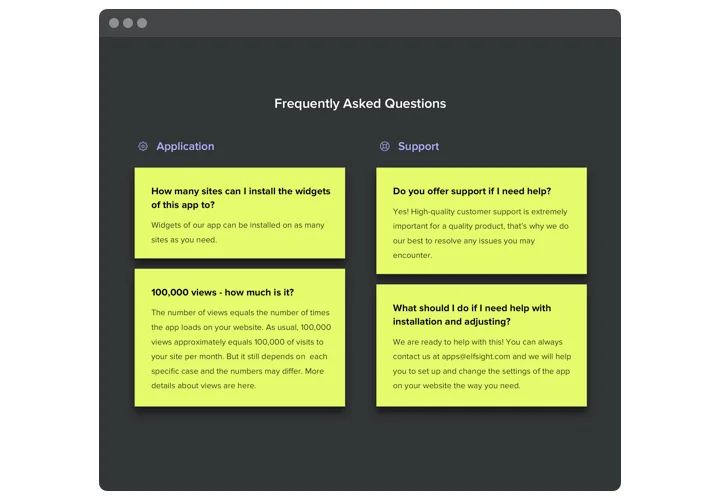
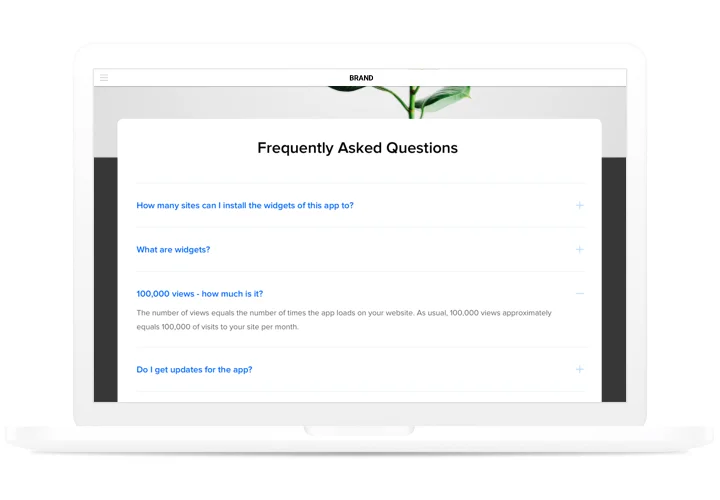
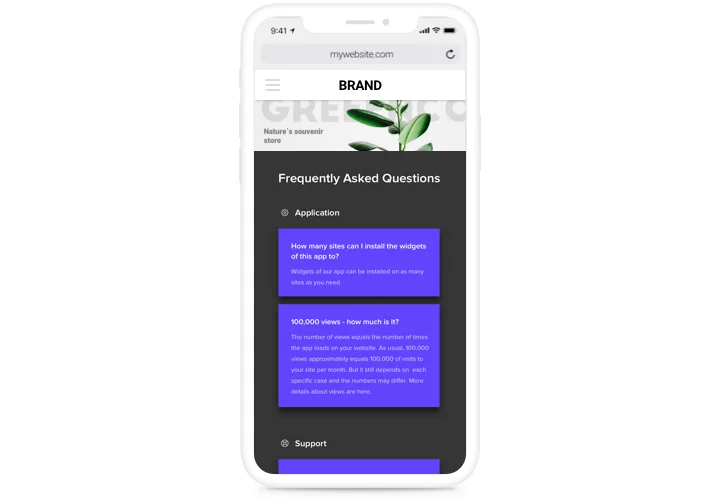
Answers before anyone has to ask
The same questions arrive again and again – delivery times, prices, how to book, what happens after an order. When the answers sit on the page in a clear order, visitors stop waiting for a reply, and your team keeps its time for requests that need a person.
Long FAQs that stay easy to navigate
Split your questions into categories – shipping, returns, bookings – and give each one its own title and icon. Visitors open the topic they came for instead of reading the whole list.
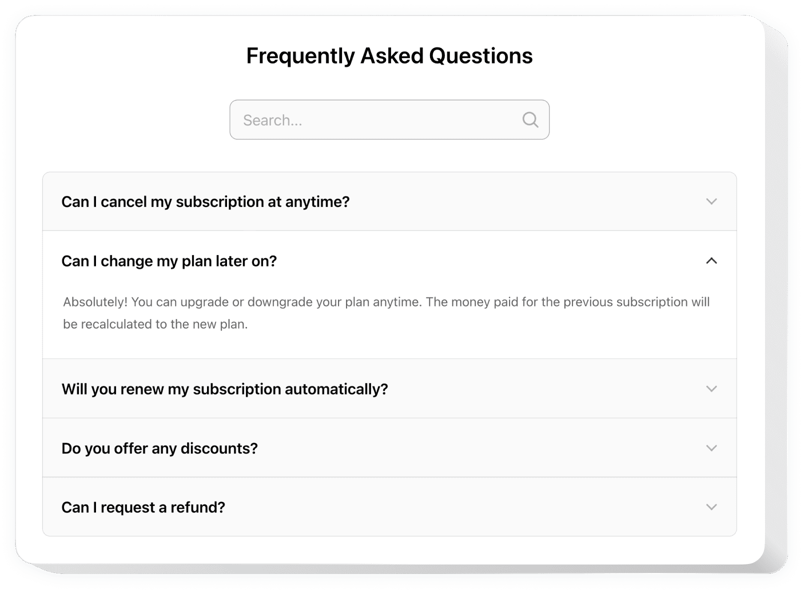
Answers found by keyword
Turn on the search bar, and visitors type a word to see only the questions that match it. People who find the answer this way don’t need to write to you with the same question.
Show the answer instead of describing it
Paste a YouTube or Vimeo link, and the answer plays the video in place; link an image to show a product, a size chart or one step of your instructions. Links in an answer stay clickable, so visitors can go straight to the page you mention.
Key Features
Everything below works on every plan, the free one included:
- Question categories – a title and an icon for each topic, so a long FAQ reads like a short one.
- Search bar – visitors type a word and get the matching questions in any of the three layouts.
- Video and image answers – YouTube and Vimeo players plus linked .jpg, .png or .gif images shown inside an answer.
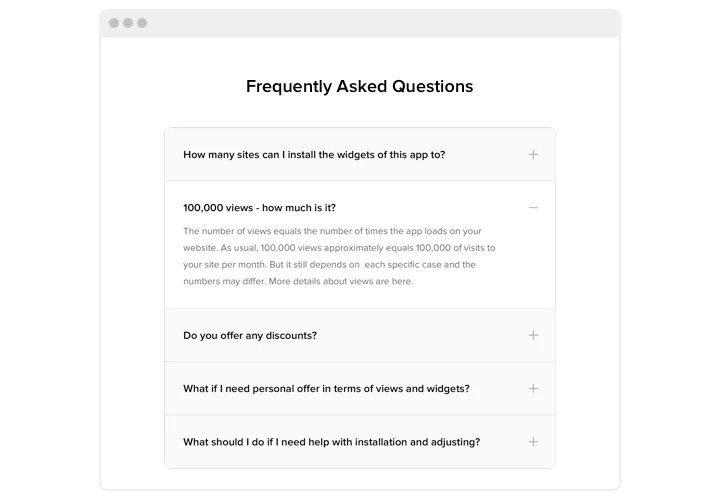
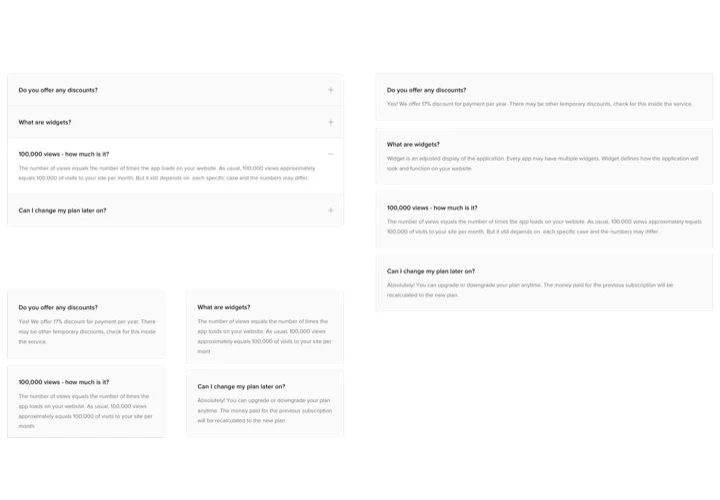
- Three layouts – Accordion, List or Multicolumn, depending on how much you want visible at once.
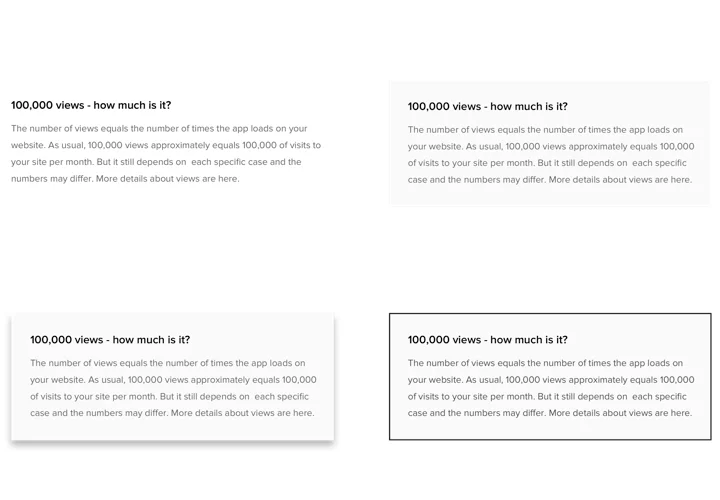
- Your colors and style – 4 style presets, colors for questions and answers, and Custom CSS for the rest.
- No cap on questions – from five answers on a product page to a complete help center.
- FAQPage schema markup – added automatically for every question you write, so search engines can read your content as questions and answers.
Try it with your own questions in the live editor before you sign up.
Fits into your WordPress setup
A typical WordPress FAQ plugin is one more thing to install and keep updated. Elfsight takes a different route:
- Any theme – the FAQ goes into the standard Custom HTML block, the same way in classic and block themes.
- Your page builder – use the HTML widget in Elementor, even on its free version, or the Raw HTML element in WPBakery.
- All your clients in one account – the widget runs on any number of domains, so agencies keep every client’s FAQ in one Elfsight dashboard and edit it without logging in to each admin panel.
- One edit, every page – change a question in Elfsight and click Publish, and every page holding the snippet shows the update.
How to add the FAQ to WordPress
Write your questions in the Elfsight editor, press Add to website for free and copy the snippet it gives you. Choose the method that matches how you build pages.
Good to know: on WordPress.com, external scripts need the Business or Commerce plan, and on other plans the snippet shows up as plain text. Whoever pastes it needs the Administrator or Editor role, otherwise the script is stripped when the page is saved.
Method 1: Use the Custom HTML block (classic and block themes)
- Go to Pages, hover over the page that should hold the FAQ and click Edit.
- Press the blue + (Block Inserter) and type Custom HTML into its search.
- Drag the block to the spot in your content where the questions belong.
- Press Edit HTML, drop the snippet into the window and confirm with Update.
- Save the page and open it as a visitor to see the FAQ in place.
Before version 7.0, the block has no Edit HTML button: paste the snippet straight into it.
Method 2: Use the HTML widget in Elementor
- Open the page through Edit with Elementor.
- Type HTML into the widget panel’s search and drag that widget into a section.
- Drop the snippet into the HTML Code box.
- Hit Publish and look at the live page to make sure the questions show up.
Pick the HTML widget rather than Custom HTML: with the latter, the FAQ may behave incorrectly.
Method 3: Use the Raw HTML element in WPBakery Page Builder
- Hover over the page in your Pages list and choose Edit with WPBakery Page Builder.
- Press the + icon, look up Raw HTML and insert that element.
- Drop the snippet into the element’s text area and save the element.
- Close the element window and press Update on the page.
Raw JS works too, but then the FAQ stays invisible inside the WPBakery editor.
Once the page is live, open it in a private window and type a word into the FAQ search to check that the right questions come up; if a caching plugin is active, clear its cache first. Short on time? Add support@elfsight.com as a user with the Administrator role, and our team will install the FAQ for free.