
Shopify FAQ app
Create your FAQ app
Screenshots
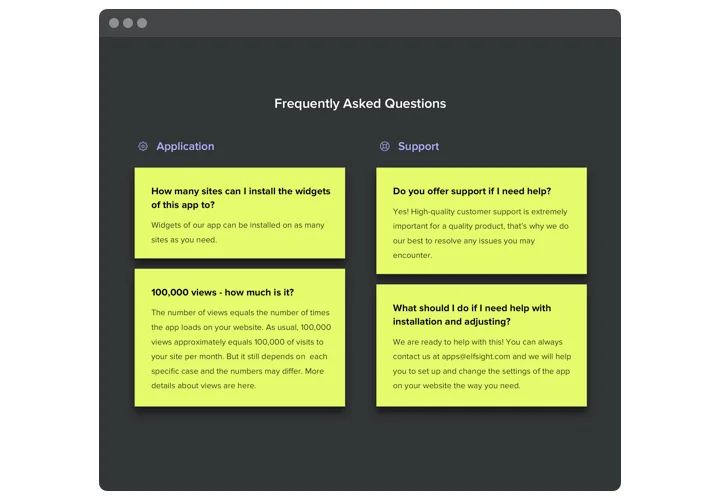
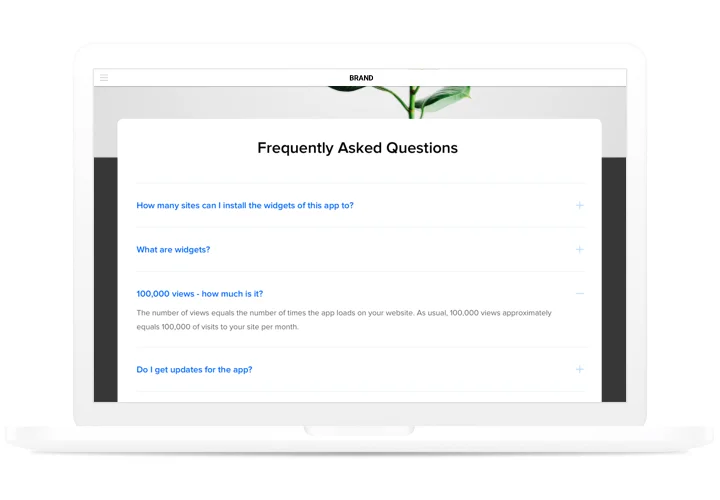
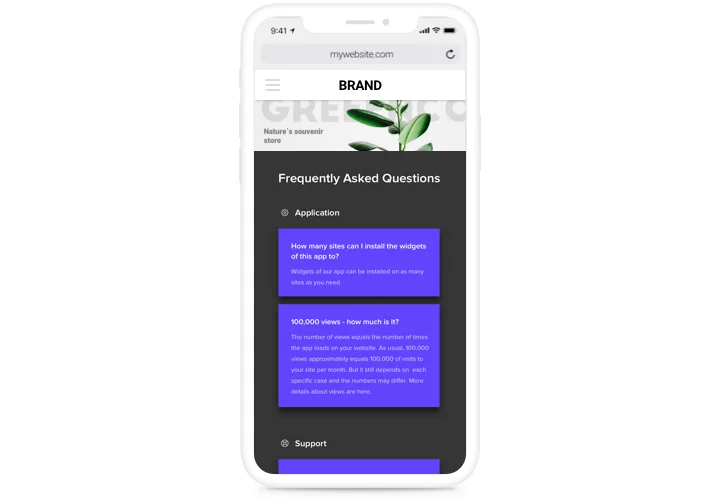
Answers right where shoppers hesitate
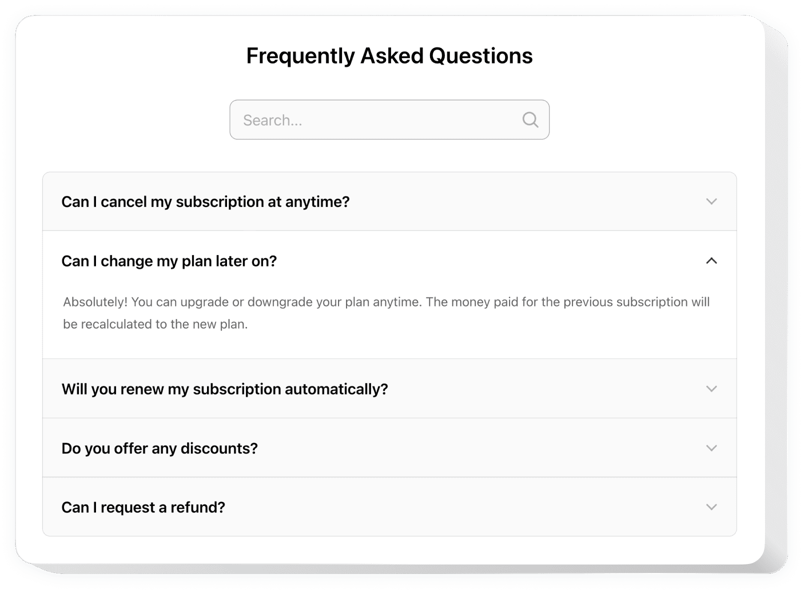
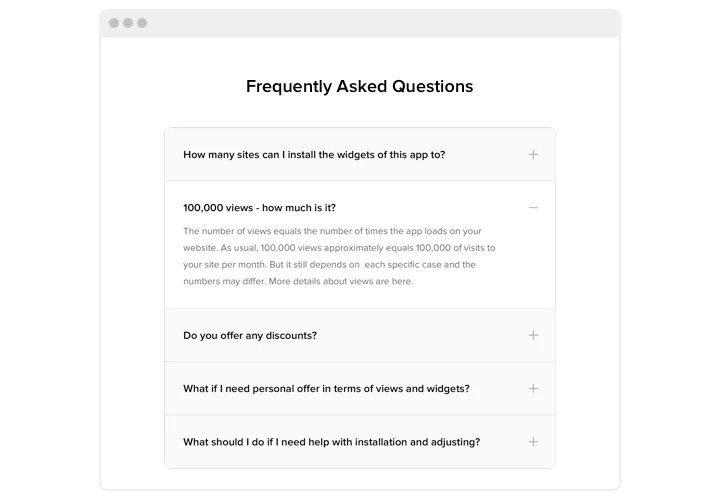
Whether it’s shipping details, return policies or product sizing, shoppers find the answer on the page instead of messaging your support team. An accordion keeps each answer folded until someone clicks it, so even a product page with a dozen questions stays short.
Topics instead of one long list
Categories like Delivery, Exchanges and Product care each get their own name and icon. A shopper goes to the topic that matches the question and skips everything else.
Found by keyword, not by scrolling
With the search bar switched on, a shopper who types “refund” or “XL” gets only the questions that match. When an answer is one word away, fewer repeat questions reach your inbox.
Answers that show, not just tell
A YouTube or Vimeo clip plays right inside the answer, and a .jpg, .png or .gif link shows a measurement guide, a fabric close-up or what’s in the box. Any link you add to the text works too, so a short answer can lead to the full returns policy.
Key Features of the Shopify FAQ App
Every item on this list is part of the free plan as well:
- Question categories – group delivery, exchange and payment questions under separate headings with their own icons.
- Search bar – works in every layout, so a single word brings up the matching questions.
- Video and image answers – a how-to clip or a product shot appears inside the answer itself, added by link.
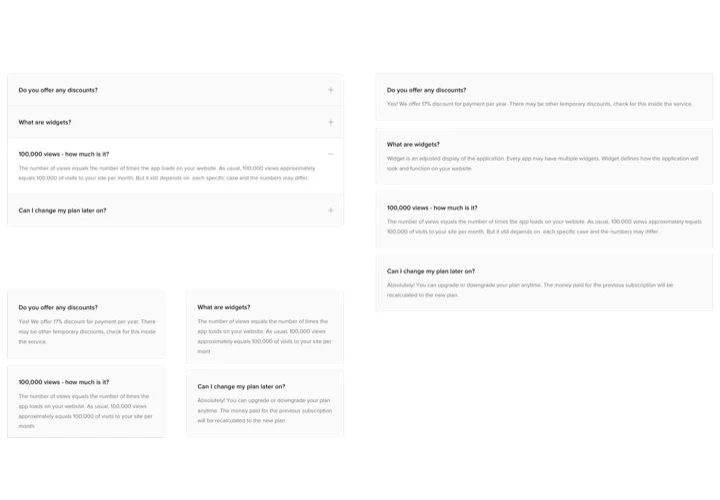
- Accordion, List or Multicolumn – fold answers until clicked, keep them all open, or lay out questions side by side.
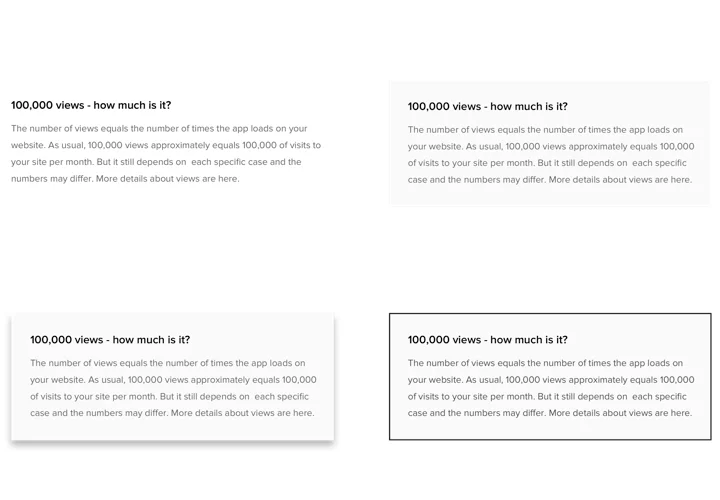
- A look that matches your theme – pick one of four ready-made styles, then tune colors or add Custom CSS.
- Clickable links – lead shoppers from an answer to a policy page, a collection or your contact page.
- No limit on questions – keep a few answers for one product or grow them into a complete help section.
If your store already runs Elfsight’s Website Translator, it translates the FAQ text along with the rest of your content.
Want to see your own questions in it first? Build a test FAQ in the live editor, no signup needed.
A theme section you manage from Elfsight
If you were about to install a Shopify FAQ app from the App Store, here’s how Elfsight works differently: you build the FAQ on elfsight.com and add it to your theme as a section.
- Usually no file editing – the theme editor lets you drop the FAQ in as a section and move it above or below other sections.
- Shared answers for a whole catalog – the questions you place in the Default product template appear on every product page built on it.
- A help page of its own – give your FAQ page a separate template with the section on it, and other pages stay untouched.
- Several stores, one account – the same widget can run on more than one domain, and its free plan has no end date.
How to add the FAQ to Shopify
Build the FAQ in the Elfsight editor – topics, answers, layout – then copy the code that appears after you click Add to website for free. Which method to use depends on your theme and on the pages where the FAQ belongs.
Good to know: anything you add in the theme editor is saved to a template and shows up on all pages built from it. Work in the published theme, since shoppers never see a draft copy, and note that stores on the Starter plan can’t add sections or custom code.
Method 1: Add a Custom Liquid section (Online Store 2.0 themes)
- Open Sales channels → Online Store and press Edit theme next to the published theme.
- From the template dropdown at the top, switch from Home page to Default product, or to the template of your FAQ page.
- Click Add section where the questions should go and choose Custom Liquid.
- Paste the FAQ code into the Custom Liquid field; Color scheme and the top and bottom padding are there too if the section needs room.
- Click Save and look at a product or page on this template in the live store.
Method 2: Create a section when Custom Liquid is missing
- In Online Store, open the … menu beside your theme and pick Edit code.
- Right-click the Sections folder, choose New File, name it elfsight-widget.liquid and press Enter.
- Copy the section code from our Help Center guide into that file and click Save.
- Open Edit theme again, click Add section and choose Elfsight widget.
- Paste your FAQ code into Installation code and save the template.
A paid theme still on trial can’t be edited in code – buy the theme first.
Method 3: Add the FAQ to a Vintage theme
- Go to Online Store → Themes and hit Customize.
- Pick the page in the top dropdown, click Add Section and add Custom Content.
- Delete the starter blocks inside it with Remove block, then go to Add Block → Custom HTML.
- Insert the FAQ code in the HTML field, make Container width 100% and save.
On product pages of a Vintage theme, our support team helps with installation.
Method 4: Paste the FAQ into a product description
- Under Products, open the item the questions are about.
- Switch the Description editor to code view with the </> (Show HTML) button.
- Add the FAQ code after the product text and save the product.
- Visit the product in your store and open a question to make sure the FAQ survived the save.
Rich text in descriptions is sanitized on save, so check the live product whenever you change it.
Check the result as a shopper would: load the live page in an incognito tab, try the FAQ search and open a few answers. Prefer not to touch the theme yourself? Our support team helps with installation – just grant access with a collaborator request or a staff account that can edit themes and code.